How to disable channels on WhatsApp

WhatsApp Channels is a feature that lets you follow updates from businesses, celebrities, news outlets, and other organizations. While some people find it useful, others may find it distracting or simply do not want to use it. If you are tired of seeing the Channels tab or getting notifications from channels you accidentally followed, you can disable or hide this feature. In this guide, you will learn how to turn off WhatsApp Channels, unfollow channels, and stop notifications completely.
As of now, WhatsApp does not allow users to completely remove the Channels feature from the app. The Updates tab (which includes Channels) is a permanent part of WhatsApp. However, you can unfollow all channels and turn off all notifications so you never have to interact with it.
Now, without further ado, let’s get started with the tutorial.
How to disable channels on WhatsApp
Option 1. Unfollow unwanted WhatsApp channels
Step 1. Open the WhatsApp app on your Android phone or iPhone.
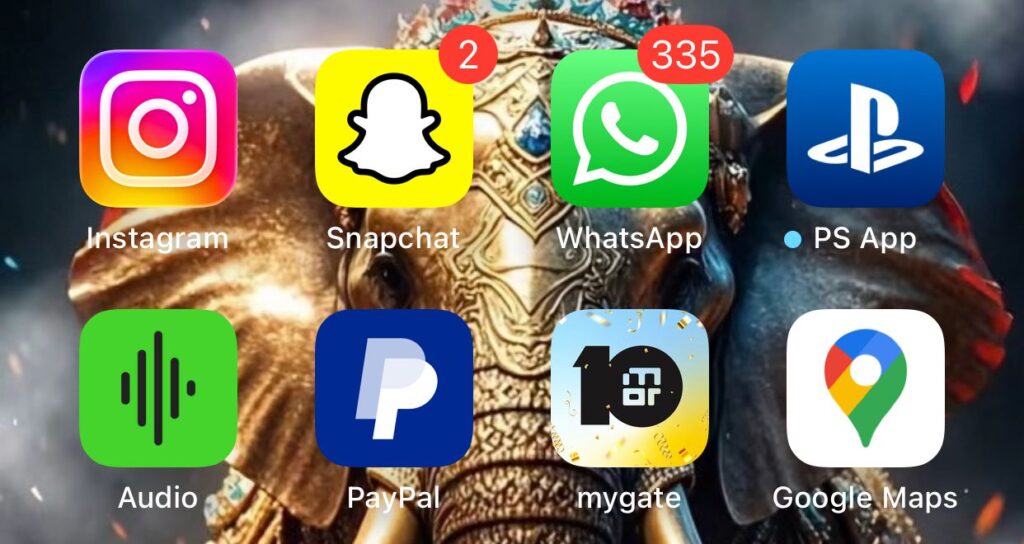
Step 2. At the bottom of your screen, you will see different tabs. Tap on the tab that says Updates. This is where you will find Channels.

Step 3. Scroll down past your Status updates. You will see a section called Channels with all the channels you are following.

Step 4. Tap on any channel you want to unfollow to open it.
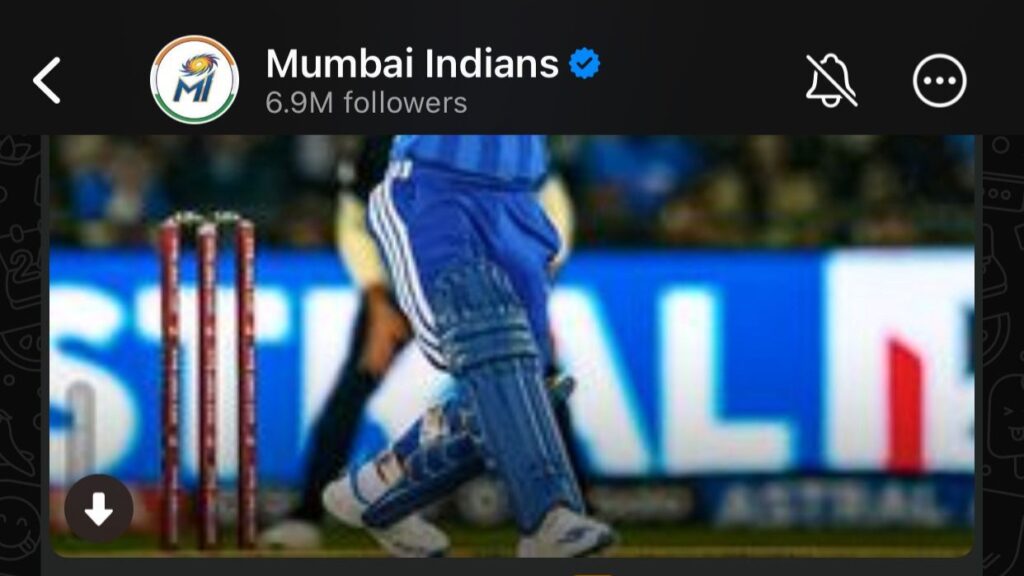
Step 5. At the top of the screen, tap on the channel name. This will open the channel information page.
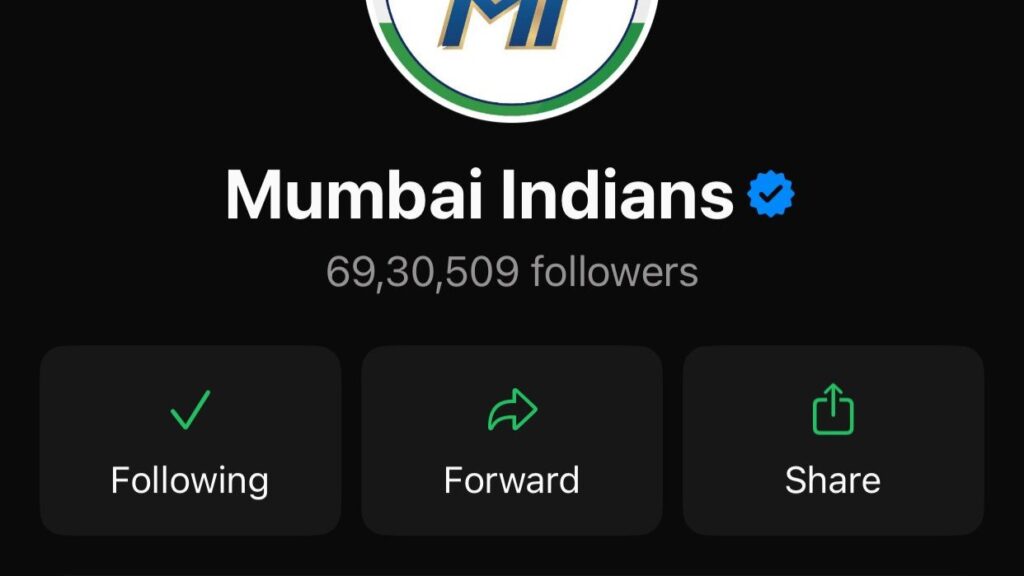
Step 6. Look for a button that says Unfollow and tap on it. The channel will be removed from your list.
Step 7. Go back and repeat these steps for any other channels you want to unfollow.
Option 2. Mute channel notifications to avoid the clutter
If you want to keep following a channel but do not want to receive notifications every time they post something, you can mute it.
Step 1. Go to the Updates tab and tap on the channel you want to mute.
Step 2. Tap on the channel name at the top to open its information page.
Step 3. Look for an option that says Mute Notifications or a bell icon with a line through it. Tap on it.
Step 4. You can usually choose to mute for 8 hours, 1 week, or Always. Select Always if you never want notifications from this channel.
Step 5. The channel is now muted. You can still see updates when you open WhatsApp, but you will not get notification sounds or pop-ups.
Option 3. Hide unwanted channels (If your region supports it)
In some countries, WhatsApp allows you to hide the Channels tab completely from your main screen. This option may not be available everywhere, but you can check if it works for you.
Step 1. Open WhatsApp and tap on the three dots in the top right corner (on Android) or go to Settings at the bottom right (on iPhone).
Step 2. Tap on Settings from the menu.
Step 3. Scroll down and look for an option related to Channels or Updates. This might be under Notifications or Privacy settings depending on your WhatsApp version.
Step 4. If there is an option to hide or disable Channels, toggle it off. This will remove the Channels tab from your main screen.
Note: If you do not see this option, it means WhatsApp has not made it available in your region yet.
Option 4. How to Turn Off All Channel Notifications Completely
If you want to stop all notifications from all channels at once, you can change your notification settings.
Step 1. Tap on the three dots (Android) or Settings tab (iPhone) in WhatsApp.
Step 2. Select Notifications from the settings menu.
Step 3. Look for a section that says Channels or Channel Updates.
Step 4. Toggle off the notification option for Channels. This will stop all sounds, vibrations, and pop-ups from any channel.
Step 5. Your settings will save automatically. You will no longer receive any channel notifications.
Congratulations! You now know how to disable WhatsApp Channels, unfollow channels you do not want, mute notifications, and take control of your WhatsApp experience. By following these simple steps, you can keep your WhatsApp clean and free from distractions. Remember, you can always change these settings again if you decide you want to use Channels in the future.
Want to learn more helpful WhatsApp tips and smartphone tutorials? Follow our website for more easy-to-follow guides that will help you use your apps and devices like a pro!