
How to extract code from Figma Make [Easy Tutorial for 2026]

You just clicked the “Make Design” button. Figma AI worked its magic for a few seconds and now you have a beautiful landing page layout sitting on your canvas. It looks professional. The spacing is decent. The colors work. But then the realization hits you. You cannot just ship a Figma file to a browser. You are staring at a collection of layers and vectors, not a functioning product. You need to know how to extract code from Figma Make so you can actually build what the AI just drew.
You just clicked the “Make Design” button. Figma AI worked its magic for a few seconds and now you have a beautiful landing page layout sitting on your canvas. It looks professional. The spacing is decent. The colors work. But then the realization hits you. You cannot just ship a Figma file to a browser. You are staring at a collection of layers and vectors, not a functioning product. You need to know how to extract code from Figma Make so you can actually build what the AI just drew.
The frustration of the “pay-to-code” model is real for independent developers and small startups. Figma has moved most of its advanced developer handoff tools into the paid Dev Mode. However, because the “Make” tool is powered by a large language model, the code actually exists within the generation process itself. You just need to know where to look and which external tools can help you bridge the gap between a static design and a functional codebase.
The hidden code tab in the AI window
The most overlooked way for how to extract code from Figma Make is located directly inside the AI generation interface. When you use the “Make Design” prompt, Figma does not just create layers. It creates a preview of what that design looks like.
If you look at the top of the AI chat window where your design was generated, you will see two options: Preview and Code. Most users stay on the Preview tab because it is more visual. If you click on the Code tab, you will see a lightweight code editor. This window usually contains the React or HTML and Tailwind CSS used to render the preview you are looking at.
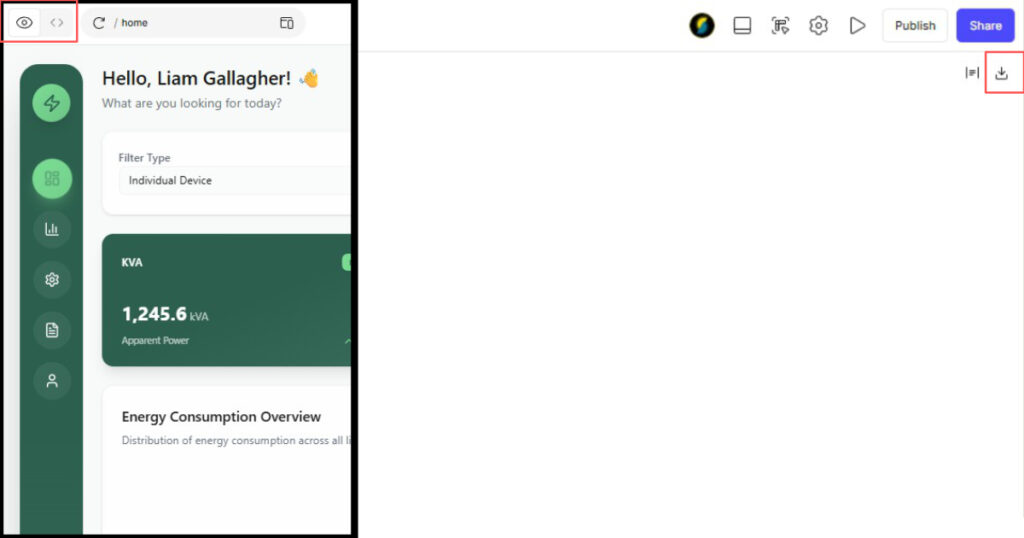
You can select all of this text and copy it directly into your own code editor like VS Code. This is the “purest” way to get code because it is exactly what the AI intended for that layout. The benefit here is that you do not need to install anything. The downside is that once you move that design onto your main Figma canvas as layers, this specific code window might disappear. You should always copy the code from the chat window before you close the AI session.
You can also click on the download code option and the whole project will be saved as a ZIP file on your computer. You can then go through the code, edit it, and use it to your liking.
Using free third-party plugins
If you have already moved the AI design onto your canvas and lost the original chat window, you need a different strategy. There is a massive ecosystem of developers who have built tools specifically to bypass the limitations of the standard inspector.
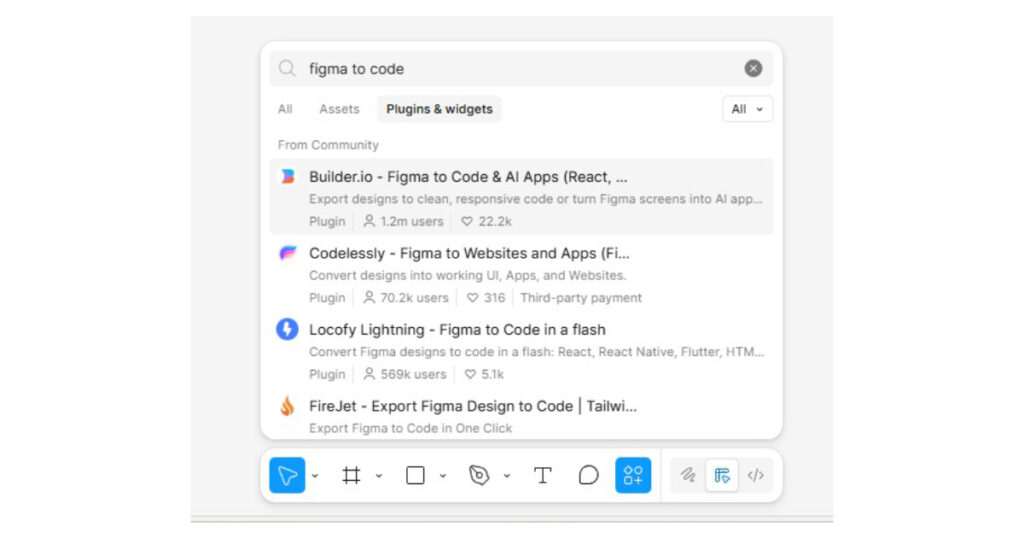
One of the best options for a free Figma to code plugin 2026 is the Builder.io Visual Copilot. This plugin uses its own AI to look at your Figma layers and generate clean code. Unlike the native Dev Mode, Builder.io offers a generous free tier that allows you to export components to React, Vue, Svelte, or plain HTML.
To use this, you simply open the plugin, select the frame the AI created, and click “Generate Code.” It handles the layout logic much better than a standard “copy-paste” of CSS properties because it tries to understand the hierarchy of the elements. This is a very effective method for how to extract code from Figma Make when you need the output to be responsive and modular.
The Anima Playground workaround
Anima is another heavy hitter in the design-to-code space. While they have a paid version for large teams, their “Playground” feature is a secret weapon for solo developers. You do not even need to have the Anima plugin installed to use it.
You can copy a link to your public Figma file and paste it into the Anima web app. It will load your design in their browser-based inspector. From there, you can click on any element to see the CSS and HTML. It essentially gives you a version of Dev Mode for free. This is especially useful if you are working on a computer where you cannot install new plugins or if you are collaborating with someone who does not have a paid Figma seat. This method is a lifesaver for anyone wondering how to extract code from Figma Make without upgrading their account.
We are entering an era that some developers call “vibe coding.” This is the idea that you can describe a design, get the code, and then iterate on it through conversation. Figma Make is at the center of this movement.
The value is no longer in writing the perfect CSS grid from scratch. The value is in being the “editor” who knows how to take an AI design and turn it into a high-performance product. By mastering the tools that let you move between these worlds for free, you position yourself as a much more efficient creator. This is the kind of technical insight that attracts brands who want to work with forward-thinking tech experts.





[…] Figma Make for AI-powered Vibe Coding allows anyone, regardless of technical background, to build high-fidelity designs by simply […]