
How to use Gmail’s ‘Help me write’ feature

Gmail now has a smart feature called Help Me Write that can help you create emails in seconds. Whether you need to write a professional work email, a quick reply, or a detailed message, this AI-powered tool can do the heavy lifting for you. You just tell it what you want to say, and it writes the email for you.
You can then review it, make changes if needed, and send it off. This feature is available on both computers and smartphones, making email writing much easier for everyone.
Obviously, you will need to be on a premium Google One plan in order to access this feature, but thanks to some competitive pricing, getting this should not be a problem. If you have already got a premium plan on Google One, you can follow along this tutorial, and if you have yet to buy into the pro plans, you can consider investing in one, if automation is something you want when it comes to your emails.
Alright, with that said, let’s take a look at how to use Gmail’s Help Me Write feature step by step.
If you are using the PC
Step 1. Go to your Gmail account on your computer by visiting gmail.com and signing in with your Google account.
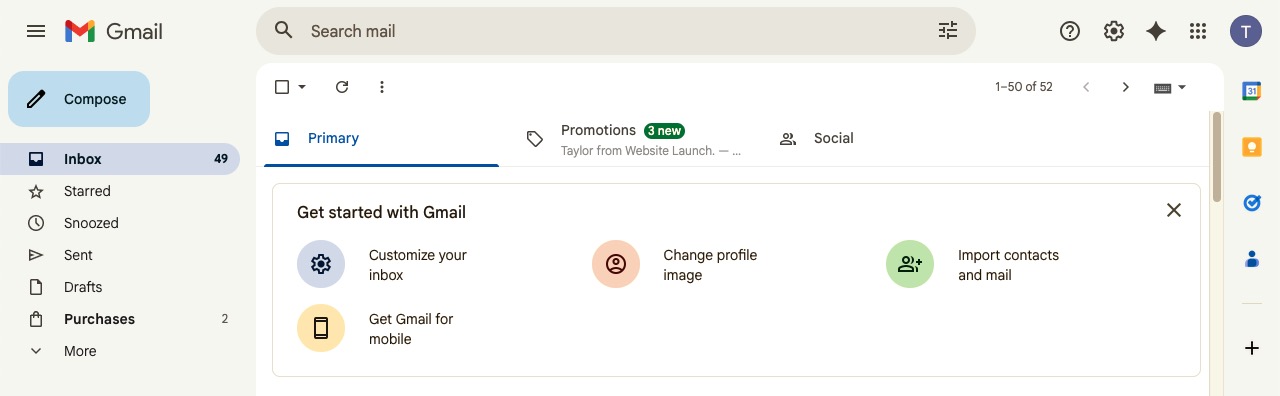
Step 2. Click on the Compose button on the left side of the screen to start writing a new email.
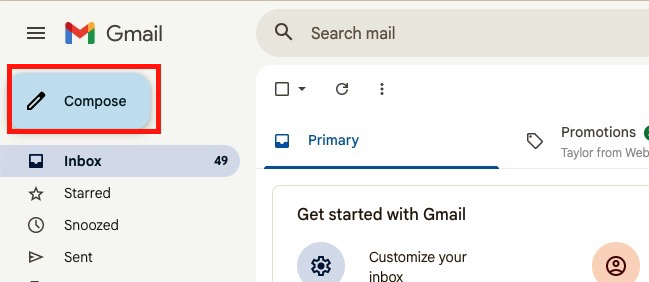
Step 3. Look at the bottom of the email box. You will see a small icon that looks like a star or sparkle. This is the Help Me Write button.
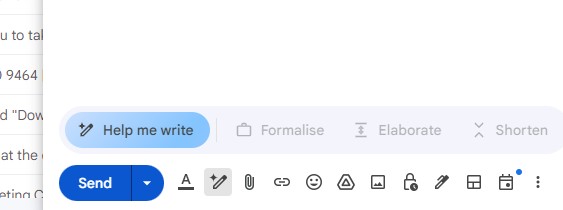
Step 4. Click on that sparkle icon. A box will appear asking you what you want to write about.
Step 5. In the box, type a simple description of what you want the email to say. For example, you can type “write an email asking for a meeting next week” or “reply saying thank you for the invitation.”
Step 6. Press Enter or click the Create button. Gmail will then write a complete email based on what you asked for.
Step 7. Read through the email that Gmail created. Check if it says what you want it to say.
Step 8. If you want to change anything, you can edit the text just like you would edit any email. You can also click on options like Recreate to get a different version, or Formalize to make it more professional, or Elaborate to make it longer.
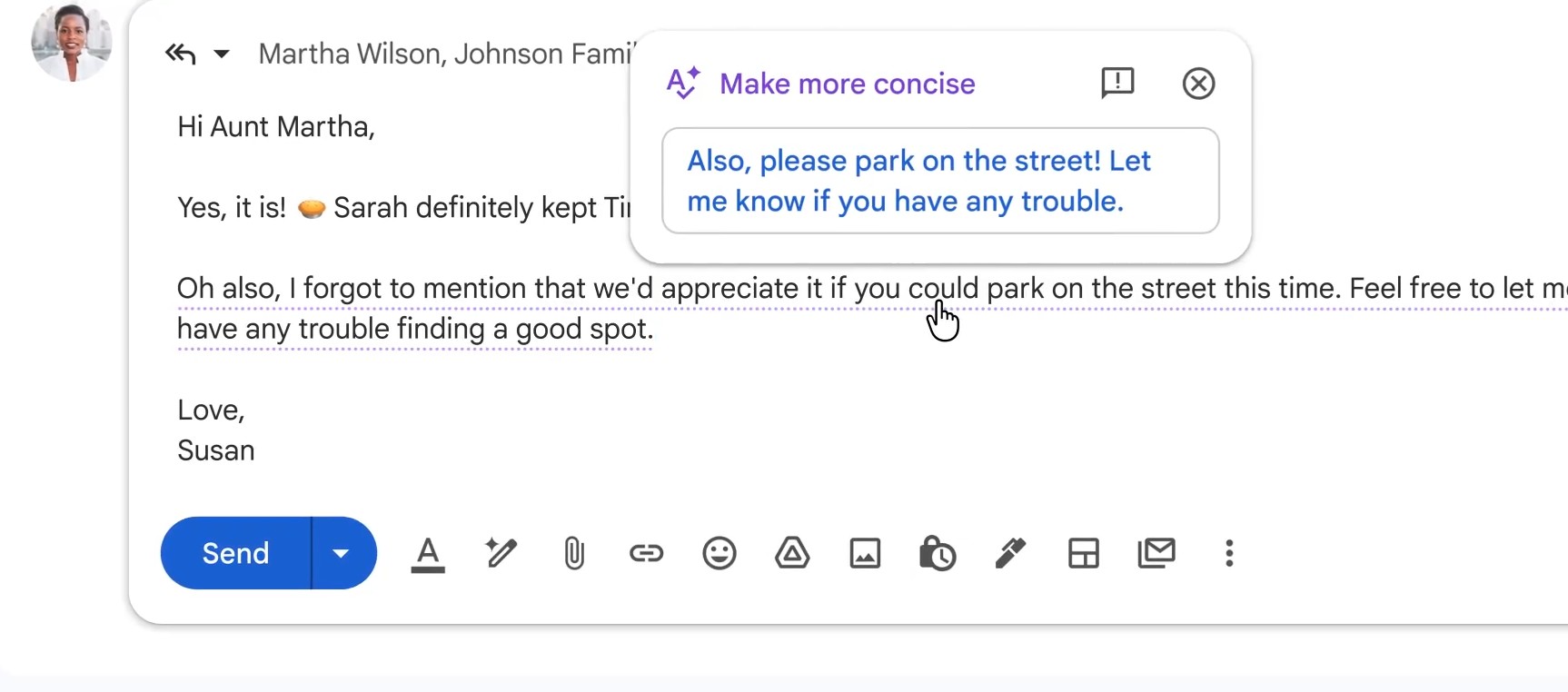
Step 9. Once you are happy with the email, add the recipient’s email address in the To field, and click Send.
If you are using the smartphone
Step 1. Open the Gmail app on your Android phone or iPhone.
Step 2. Tap on the Compose button, which is usually a colorful icon at the bottom right corner of the screen.
Step 3. In the new email screen, look at the bottom area near the keyboard. You will see a sparkle icon for Help Me Write.
Step 4. Tap on that sparkle icon.
Step 5. Type in what you want the email to be about. Keep it simple, like “email to cancel an appointment” or “thank you message for a gift.”
Step 6. Tap Create, and Gmail will write the email for you.
Step 7. Read what Gmail wrote to make sure it sounds right.
Step 8. You can make any changes you like. You can also use options to recreate, shorten, or lengthen the email.
Step 9. Add the person’s email address and tap the Send button.
What you need to remember
This feature needs an internet connection to work because it uses Google’s AI technology. The Help Me Write feature is available for most Gmail users, but you need to have it enabled in your settings. If you don’t see it, check your Gmail settings or update your Gmail app. Always read the email before sending it. While the AI is smart, it might not always get the tone or details exactly right for your situation.
Congratulations! You now know how to use Gmail’s Help Me Write feature to create emails quickly and easily. This tool can save you time and help you write better emails, whether you are using a computer or a smartphone. The more you use it, the more comfortable you will become with it.
Want to learn more helpful tech tips and tutorials? Follow our website for more easy-to-understand guides that will help you get the most out of your devices and apps!







[…] to learn more helpful tech tips and tricks? Follow our website for more easy-to-follow tutorials that will help you make the most of your smartphone and […]