
How to use WhatsApp on PC or laptop: A simple step-by-step guide

WhatsApp is the go-to app for billions of people to stay connected, but constantly picking up your phone while working on a computer can be a massive distraction. Whether you are a student writing an essay or a professional managing emails, the friction of switching devices is a real pain point. You lose focus, and sometimes typing long messages on a small touchscreen is just plain frustrating.
The good news is that you can bring your chats to the big screen. In this guide, we will address the challenge of staying connected without losing productivity. We are going to show you exactly how to use WhatsApp web and how to get WhatsApp on laptop or desktop systems so you can type faster, share files easily, and keep your phone in your pocket.
Step-by-step guide on how to use WhatsApp on PC
There are two primary ways to do this: using a web browser or installing the dedicated desktop application. Both methods are free and yield the same outcome. The choice is yours.
Method 1: Using WhatsApp Web (No installation required)
This is the quickest way to get started and works on any modern browser like Chrome, Firefox, Edge, etc.
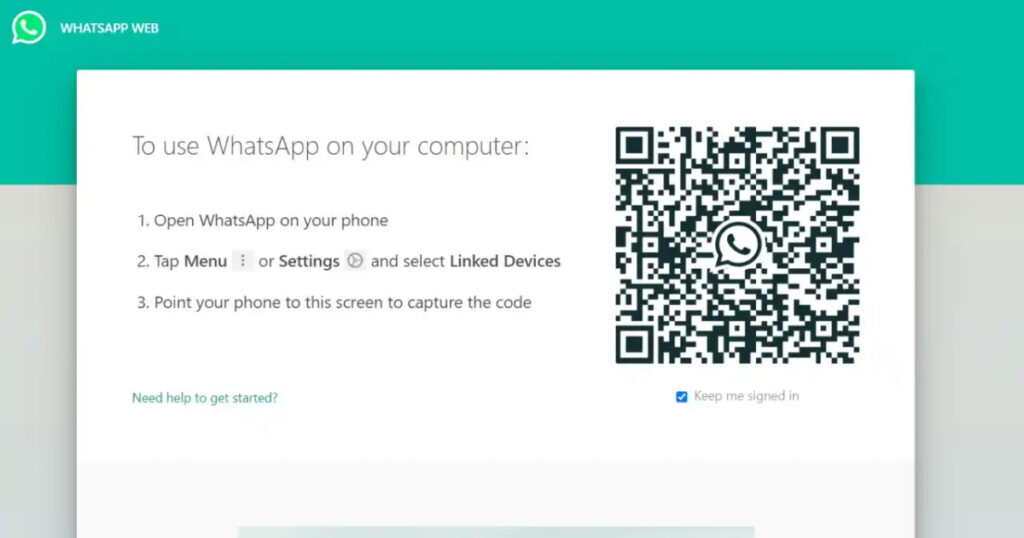
Step 1. On your PC or laptop, open your preferred web browser and go to web.whatsapp.com. You will see a large QR code on the screen.
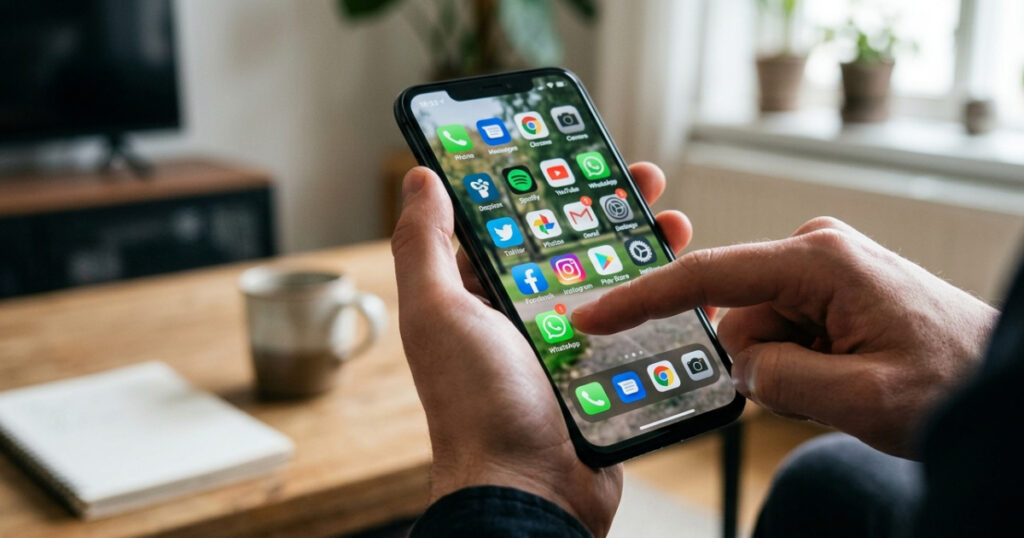
Step 2. Pick up your smartphone and launch the WhatsApp app.
Step 3. Access the WhatsApp Web menu
- If you are using an Android device – Tap the three vertical dots in the top-right corner.
- If you are using an iOS device – Tap the Settings icon at the bottom-right.

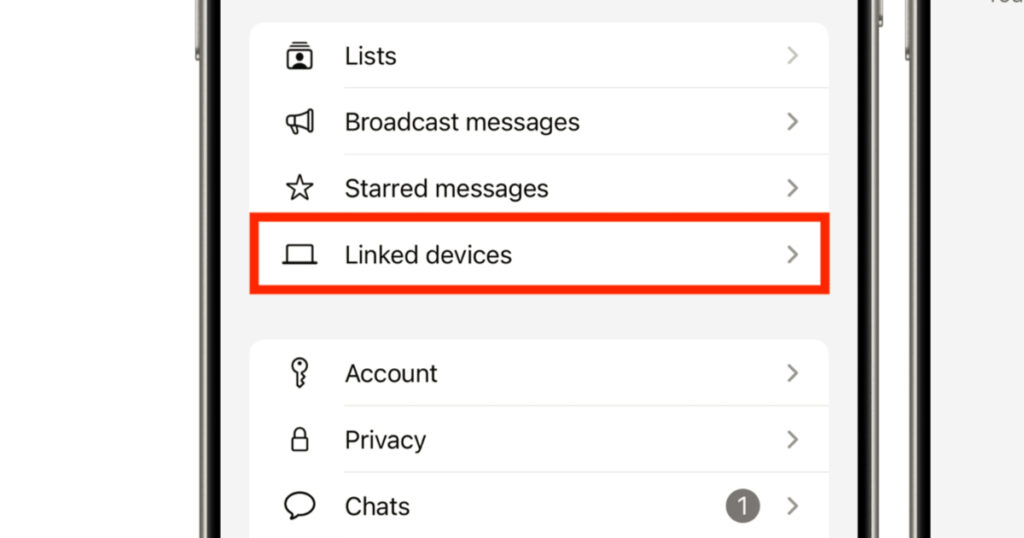
Step 4. Tap on the option that says Linked Devices.
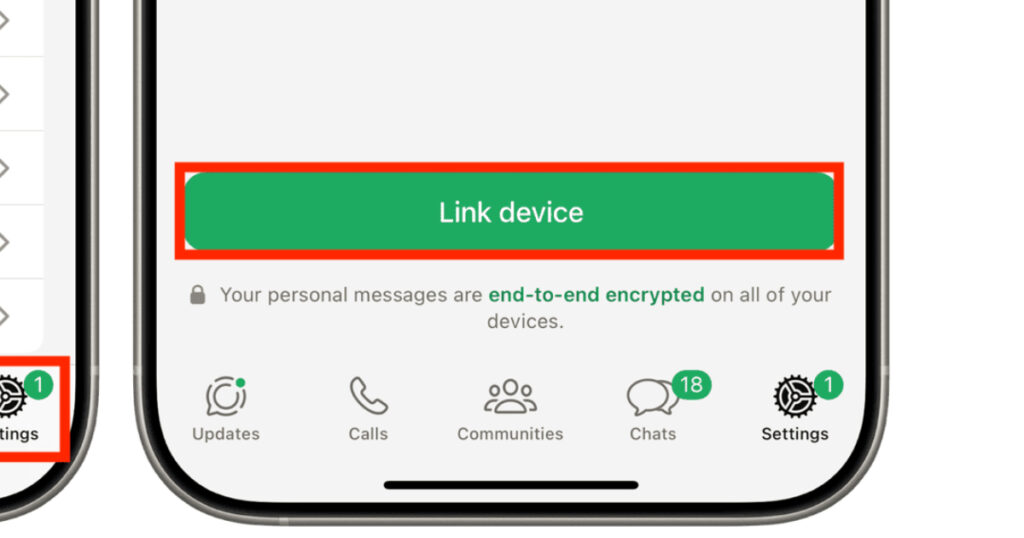
Step 5. Tap on Link a Device. Your phone’s camera will open. Point your phone at your computer screen to scan the QR code.
Step 6. Within seconds, your chats will appear on your browser. You can now send messages just like you do on your phone.
Method 2: Installing the WhatsApp Desktop App
If you use WhatsApp frequently, the desktop app is a better choice as it offers native notifications and sometimes better performance.
Here’s how to get it done –
Step 1. Go to the official WhatsApp website or the Microsoft Store/Mac App Store and search for “WhatsApp”.
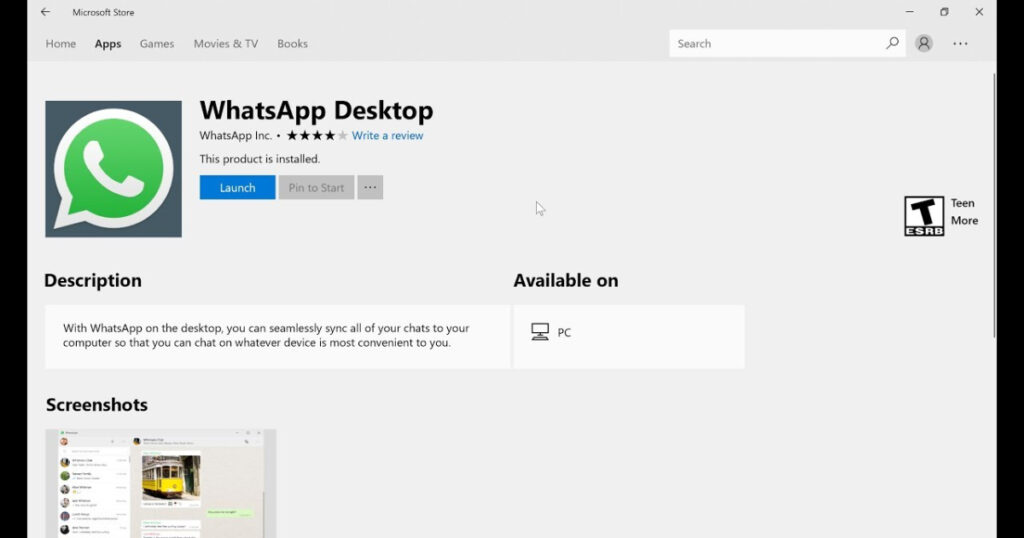
Step 2. Download the installer and follow the prompts to install it on your system. Once finished, open the app.
Step 3. Just like the web version, a QR code will appear. Follow the same steps (Menu > Linked Devices > Link a Device) on your phone to scan it.
Step 4. The app will stay logged in even if you close the window, so you don’t have to scan the code every single time.
Congratulations on successfully setting up your desktop messaging station! We hope these steps have worked out for you and that you find it much easier to manage your conversations from your computer. No more squinting at a small screen while you are trying to get work done.
If you found this tutorial helpful, please share the post with your friends who might still be struggling with their phone notifications. Stay tuned to our website for more simple tech guides and tips to make your digital life a breeze. If there is a specific guide you want use to work on, do get in touch and let us know!!





[…] of quiet time without family members expecting an instant reply, or you simply value your privacy, WhatsApp gives you full control. You can hide your online status on WhatsApp in just a few taps, and this guide will walk you […]