Instagram Messages: The Complete Guide to Every DM Feature in 2026

Instagram Direct Messages have become one of the most feature-rich messaging tools on any social platform. In 2026, DMs include scheduling, translation, music sharing, voice notes, end-to-end encryption, pinned chats, Vanish Mode, and much more. This guide covers every feature, every setting, and every tip in one place.
What Are Instagram Messages and How Do You Open Them
Instagram Messages, also called Instagram DMs or Instagram Direct, are the private messaging feature inside the Instagram app. Unlike public posts, Stories, or comments that anyone can see, messages are only visible to you and the people you send them to.
You can use Instagram messages to send text, photos, videos, voice notes, GIFs, stickers, Reels, posts from your feed, and links. You can message one person at a time or create group chats with up to 32 people. Instagram also supports voice and video calls through the same messaging interface.
How to Open Instagram Messages
- Open the Instagram app on your phone.
- Tap the paper plane icon at the top right of your home screen. On updated versions of the app, a dedicated Messages tab appears directly in the bottom navigation bar.
- Your inbox shows all your conversations. Unread messages appear in bold.
- Tap any conversation to open it. Tap the pencil icon at the top right to start a new message.
On desktop, go to Instagram.com, sign in, and click the paper plane icon in the left sidebar. Most features work on the web version, although some newer features may be app-only until they fully roll out.
Every Type of Message You Can Send on Instagram
Instagram messages support several different content types, each with its own behaviour.
Text Messages
Standard text messages are the default. Type your message and tap the send arrow. You can use emoji, tag accounts with @username, and include links. Links automatically become tappable.
Photo and Video Messages
Tap the camera icon inside a conversation to take a new photo or video. Tap the gallery icon to choose one from your camera roll. You can choose to send media as a regular message that stays in the chat permanently, or as a View Once message that disappears after the recipient opens it once.
Voice Messages
Hold down the microphone icon to record a voice message up to one minute long. Release to send. Voice messages now include automatic text transcription, meaning the recipient can read a text version of what you said without playing the audio. This is especially useful in noisy environments or when the recipient has their phone on silent.
Vanish Mode
Vanish Mode makes every new message disappear automatically after the recipient has seen it and closed the chat. To turn it on, open an existing conversation and swipe up from the bottom of the screen. Swipe up again to turn it off. In Vanish Mode, Instagram also notifies you if the other person takes a screenshot.
Vanish Mode is different from View Once media. View Once applies only to the specific photo or video you mark as view-once, and it disappears after being opened. Vanish Mode applies to everything sent during the session, including text messages, and they disappear when the chat is closed.
Reactions and Replies
Hold down any message and select an emoji to react to it. Tap and hold then choose Reply to quote a specific message in your response. This keeps long conversations organized and easier to follow, especially in group chats.
Sharing Posts, Reels, and Stories
Tap the share icon under any post or Reel and choose Send to open your messages inbox. Select a person or group and send it directly into the chat. When a friend’s Story is visible to you, you can reply to it and that reply goes directly into their DMs as a message.
New Instagram Message Features Added in 2025 and 2026
Instagram has made DMs a core priority. These features are either new or significantly upgraded in 2025 and early 2026.
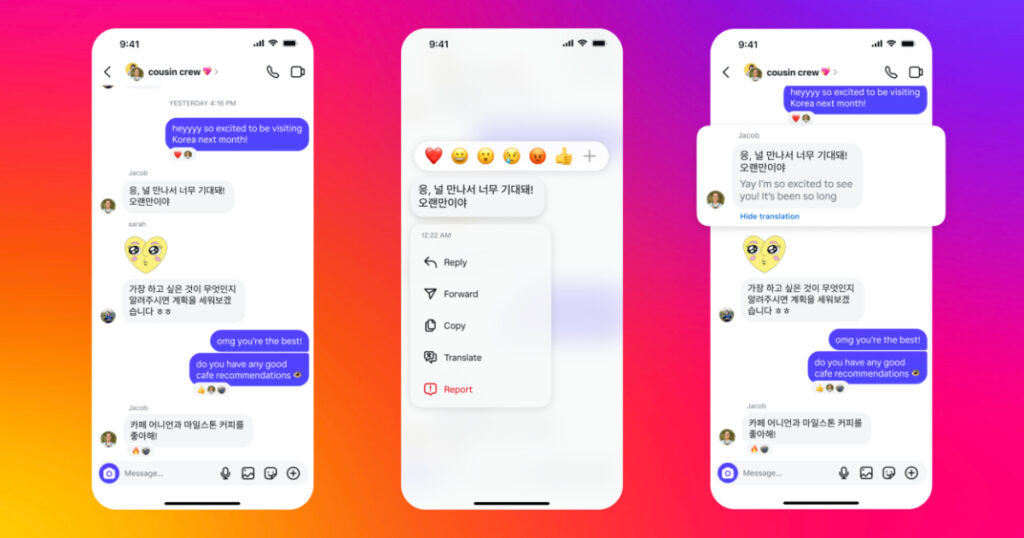
How to Translate Messages
If someone sends you a message in another language, Instagram can translate it for you without leaving the app. Instagram supports translation in 99 languages, powered by Meta’s translation technology.
- Hold down the message you want to translate.
- Tap Translate.
- The translated version appears directly below the original message in the conversation.
Translation works on messages you receive AND messages you send. If you send a message in English to a friend who speaks Spanish, they can translate it the same way.
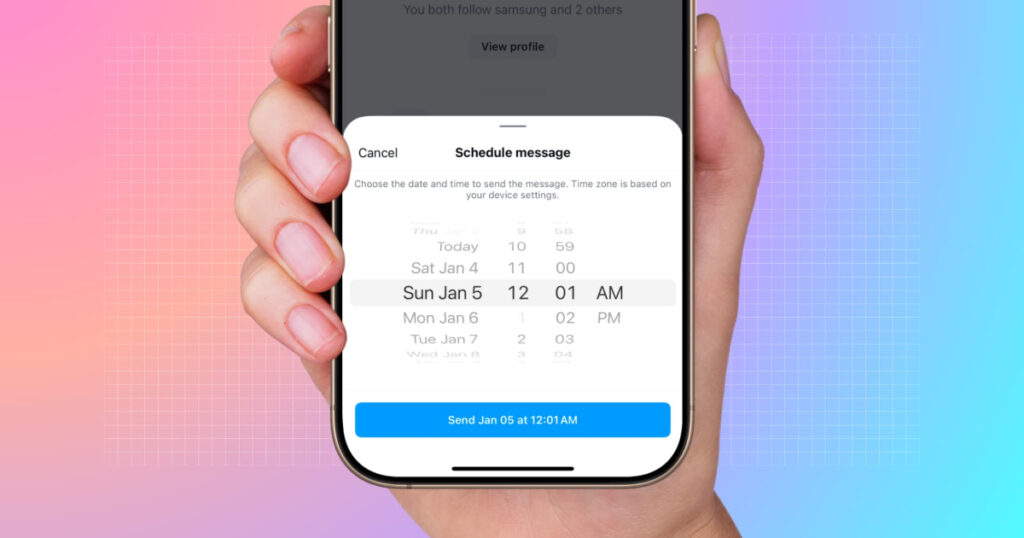
How to Schedule Messages
You can schedule a message to be sent at a specific date and time, up to 30 days in advance. This is useful for birthday messages, reminders, or timed announcements.
- Type your message in any conversation.
- Instead of tapping the send arrow normally, press and hold the send button.
- A date and time picker appears. Set when you want the message to be sent.
- Tap the Send button to confirm the schedule.
Scheduled messages appear in your conversation with a clock icon until they are sent. You can cancel or edit them by tapping the scheduled message before it sends.
How to Send Music in a DM
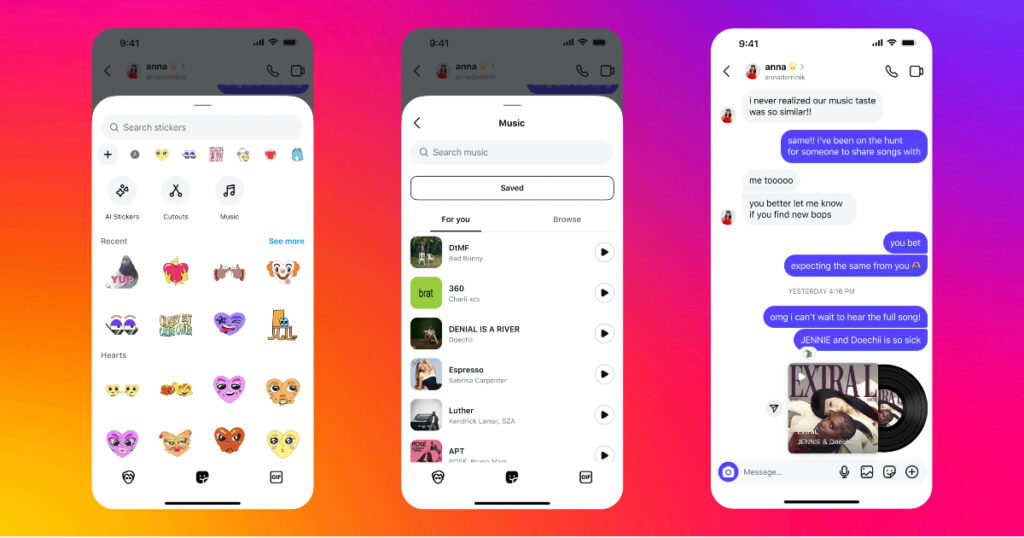
You can share a 30-second preview of any song from the Instagram audio library directly in a conversation.
- Open any conversation.
- Tap the sticker icon in the message bar.
- Tap Music.
- Search for any song and select it.
- The recipient sees a spinning vinyl album cover and can play the preview directly in the chat.
How to Pin Messages and Content
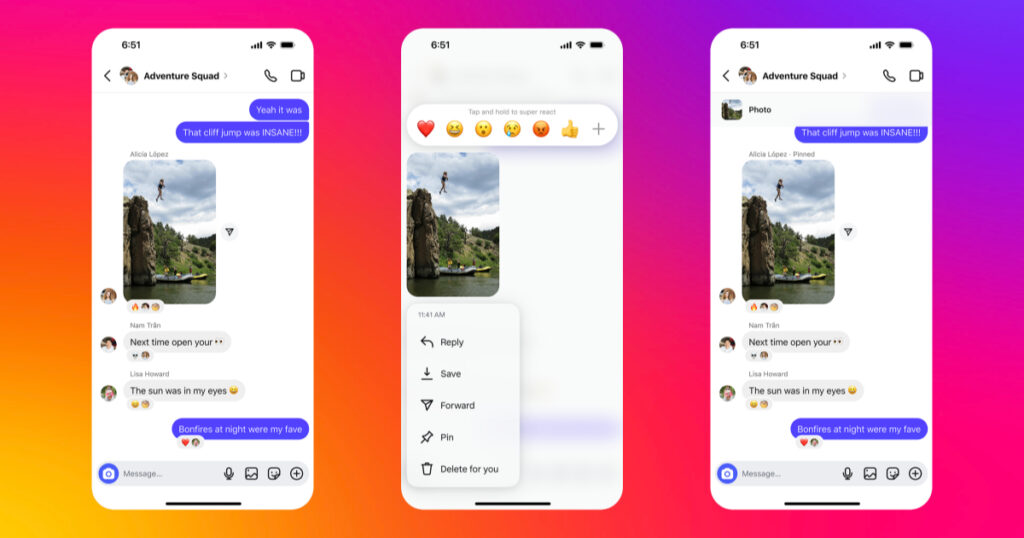
You can pin up to three messages or pieces of content within any individual conversation. Pinned items appear at the top of the chat and are easy to find even after hundreds of messages have been exchanged. This is useful for pinning addresses, event details, shared notes, or important links.
- Hold down the message, image, or content you want to pin.
- Tap Pin.
- The item appears at the top of the conversation.
You can also pin entire chat threads in your inbox. Swipe right on a conversation in your inbox, or hold down and select Pin. Up to three chats can be pinned at the top of your inbox so you always find them first.
Group Chat QR Codes
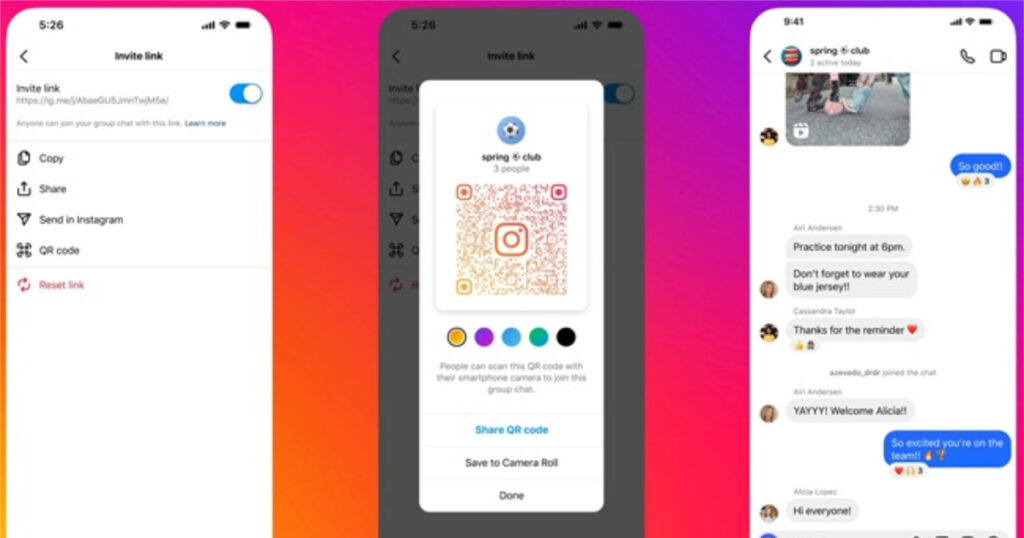
Every group chat now has its own QR code that makes it easy to invite new people to join, without having to search for usernames or share a link manually.
- Open the group chat.
- Tap the group name at the top.
- Tap Invite Link, then tap QR Code.
- Share the QR code image or let someone scan it in person.
The group admin can refresh the QR code at any time to stop new joins from old links.
Nicknames
You can give contacts a custom nickname that only you see in your conversations. This is useful for organizing contacts or just personalizing how people appear in your chats.
- Open a conversation.
- Tap the person’s name or group name at the top.
- Tap Nicknames.
- Add a nickname for yourself or the other person.
How to Manage Your Instagram Message Inbox
As Instagram messaging has grown, so has the inbox. These tools help you stay organized.
Message Requests
When someone you do not follow sends you a message, it goes into your Message Requests folder rather than your main inbox. This applies to anyone who is not a mutual follower. You will not get a notification for message requests. You need to check manually.
To find Message Requests: open your inbox, look for the Requests tab at the top. Tap any request to preview it. You can accept it, which moves it to your main inbox, or delete it without the sender knowing you saw it.
If you are expecting a message from someone new and cannot find it, check your Message Requests folder first. Many missed messages sit there, especially on business accounts or accounts that receive messages from people they do not follow.
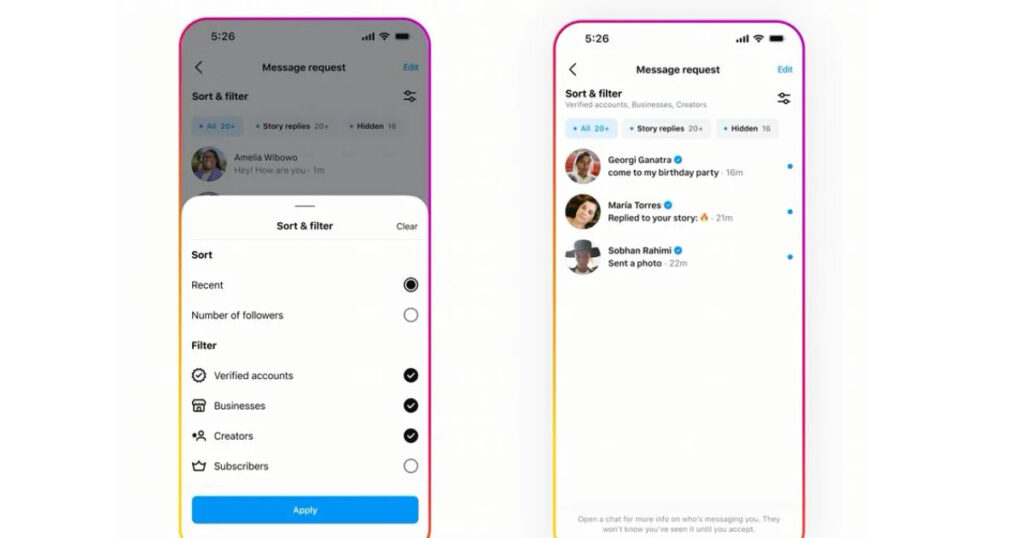
Message Filters and Folders
Instagram has added inbox filters that let you sort messages by category. Available filters include: Unread, Story Replies, Primary, General, and custom labels. Professional accounts and accounts with over 100,000 followers also have access to filters for Verified accounts and Follower status.
You can also create custom folders to group conversations by type, such as separating customer messages, collaborations, or personal chats. To access folders, open your inbox settings and look for the Folders option.
Searching Messages
Tap the search icon at the top of your inbox to search by name, keyword, or content across all your conversations. This makes it faster to find a specific message or person without scrolling through your entire inbox.
Instagram Message Privacy Settings You Need to Know
Privacy in Instagram messages works on several layers. Here is what each setting actually does and how to control it.
Private vs Encrypted: What the Difference Is
Instagram DMs are private by default, which means only you and the people in the conversation can see the messages inside the app. However, private does not automatically mean encrypted.
Standard Instagram DMs are stored on Meta’s servers. This means Meta can technically access them and may share them with law enforcement if required by law. For everyday personal conversations, this is not a concern for most people. For highly sensitive or confidential conversations, this is worth knowing.
How to Turn On End-to-End Encryption
End-to-end encryption means only you and the other person can read the messages. Not Meta, not Instagram, and not anyone else. When E2E encryption is active, messages are scrambled in transit and can only be decoded on the recipient’s device.
- Open a conversation.
- Tap the person’s name at the top.
- Tap Privacy and Safety.
- Tap Use end-to-end encryption.
Once enabled, the chat icon shows a lock symbol. Note: end-to-end encrypted chats are separate from standard chats. You cannot switch between encrypted and standard mode within the same conversation thread. If you enable E2E, the conversation starts fresh in an encrypted thread.
End-to-end encryption is not enabled by default for Instagram DMs. If privacy is a priority for a specific conversation, you need to enable it manually. For messaging that requires strong privacy by default, WhatsApp (which is E2E encrypted by default) or Signal are better options.
Read Receipts
When you read a message, Instagram shows the sender a small Seen indicator below their message. You can turn this off so your reading activity is not visible.
- Go to your profile and tap the three lines (menu) at the top right.
- Tap Settings and Privacy.
- Tap Messages and Story Replies.
- Tap Show Read Receipts and toggle it off.
You can also turn off read receipts for individual conversations by opening the conversation, tapping the name at the top, going to Privacy and Safety, and toggling off Read Receipts for that specific contact.
Controlling Who Can Message You
Instagram gives you control over who can send you messages and calls. Go to Settings and Privacy, then tap Messages and Story Replies. Options include: who can send you message requests, who can send you Direct Messages, and who can call you via audio or video in the app. You can set each of these to Everyone, People You Follow, or No One.
Restricting an Account
Restricting an account is a privacy tool that is different from blocking. When you restrict someone, their messages go to a separate requests folder where they do not know you have seen them, and they cannot see when you are active. The restricted person does not know they have been restricted. This is useful for managing unwanted contact without fully blocking someone.
How to Use Instagram Messages for Your Business
For businesses, Instagram messages are a direct line to customers and potential buyers. Here is how to use them effectively.
Quick Replies
Quick Replies let you save and reuse common responses. Instead of typing the same answer to frequently asked questions, you set up a shortcut that inserts your saved reply with a single tap. Go to Settings, then Business, then Saved Replies to set these up.
Broadcast Channels
Broadcast Channels are one-to-many messages where you send updates to all your subscribers at once, but subscribers cannot reply publicly. It works like a newsletter inside Instagram DMs. Followers choose to subscribe to your channel, and you can send text, images, polls, and voice notes directly to everyone who has subscribed. This is one of the most effective tools for direct audience communication that Instagram currently offers.
Comment-to-DM Automation
Instagram’s Messenger API allows businesses to set up automated responses that send a DM whenever someone comments on a specific post. For example, you post a product launch with a caption that says ‘Comment LINK below to get the details sent to your DMs.’ The automation sends anyone who comments the link directly. This method drives very high DM response rates and is used widely by creators and brands. Third-party tools like ManyChat, Inro, and Spur connect to the API to manage these flows.
Click-to-DM Ads
Instagram allows you to run ads in the Feed and Stories that open a DM conversation when tapped. When someone taps the ad, it takes them directly into a chat with your account. This makes it easy to collect leads, answer product questions, or start a sales conversation without sending people to a website first.
The Messenger API and Automation
Professional accounts with 100,000 or more followers have access to advanced features: automated lead detection, sophisticated inbox filters, and AI-powered response tools. For smaller accounts, the Messenger API is still accessible through third-party tools, allowing chatbots and automated responses to be set up for business DMs.
Instagram Group Chats: How They Work and What You Can Do
Group chats on Instagram let you message multiple people in one conversation. Standard group chats support up to 32 people. Instagram’s infrastructure technically supports larger groups in certain configurations, but the standard limit for regular group chats is 32 participants.
To create a group chat: tap the pencil icon in your inbox, select multiple people, and tap Chat. To add people to an existing group, open the group, tap the group name, and tap Add People.
Inside a group chat, you can pin messages, share QR codes for easy invites, react to messages, and reply to specific messages. The group admin can manage membership and refresh the QR invite code to control who joins.
Group chats are separate from Broadcast Channels. In a group chat, everyone can send messages and everyone can see everyone else’s messages. In a Broadcast Channel, only the creator sends messages and subscribers receive them without being able to reply publicly.
If you are added to a group chat with people you do not follow, Instagram will show a Quick Follow button so you can easily follow them directly from within the group chat.
Voice and Video Calls in Instagram Messages
Instagram DMs include built-in voice and video calling. You do not need a separate app to call people you are already connected to on Instagram.
To make a call: open a conversation, then tap the phone icon for a voice call or the camera icon for a video call. Video calls support up to 8 people at the same time, making them useful for small group calls or creative collaborations.
Calls are made over Wi-Fi or mobile data, not phone minutes. Call quality depends on your internet connection. Instagram notifies the recipient that you are calling, and they can decline or ignore the call if they choose.
Calls through Instagram are not end-to-end encrypted by default, just like standard DMs. If call privacy is important, use a service that is E2E encrypted by default for calls, such as WhatsApp or FaceTime.
Common Instagram Message Problems and How to Fix Them
Your messages are not sending
Check your internet connection first. If the connection is fine, try force-closing the app and reopening it. If the problem continues, go to Settings on your device and make sure Instagram has permission to use mobile data and Wi-Fi. Clearing the app’s cache (on Android) can also help.
You cannot DM someone
If you cannot send a message to someone, there are a few possible reasons: they may have changed their privacy settings to restrict who can message them, they may have blocked you, or you may be trying to message an account that has turned off new message requests entirely. If you can see their profile but the Message button is missing, they have restricted messaging from accounts they do not follow.
A message went to your Requests folder instead of your main inbox
This is normal for messages from people you do not follow. Open your inbox, tap the Requests tab, and accept the message to move it to your main inbox. Once you accept, future messages from that person will go directly to your main inbox.
How to unsend a message you already sent
Hold down on the message you want to remove. Tap Unsend. The message disappears from both your inbox and the recipient’s inbox immediately. The recipient will not be able to see the message after you unsend it, but if they already read it before you unsent it, they will have seen the content.
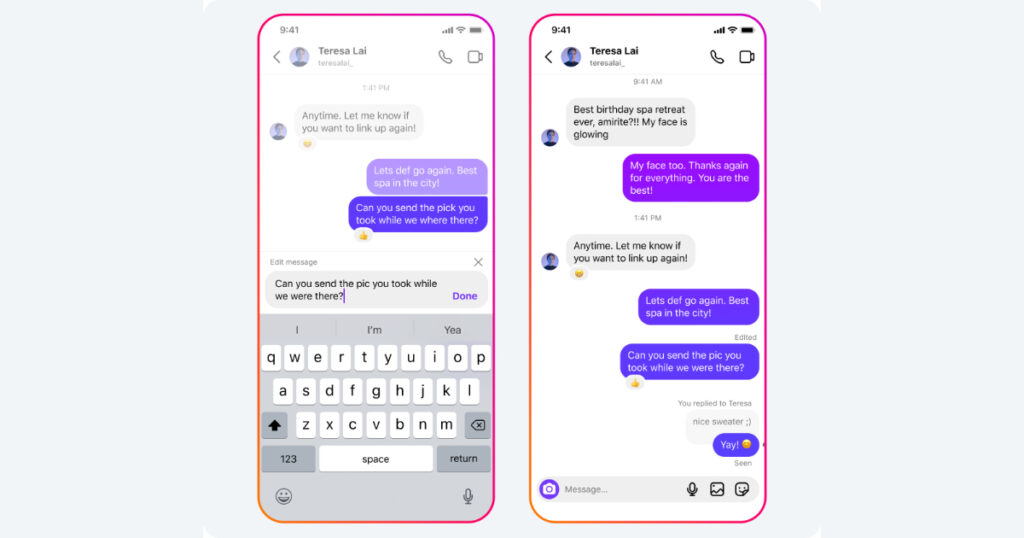
How to edit a message you already sent
Instagram lets you edit a DM within 15 minutes of sending it. Hold down the message, tap Edit, make your changes, and confirm. The message shows an Edited label so the recipient knows it was changed.
You are missing messages or a conversation has disappeared
Check your Requests folder and your Hidden Words filter in your inbox. Also check if you have accidentally archived the conversation (swipe left on a conversation and look for Archive). If you deleted a conversation, it cannot be recovered.
Instagram Messages FAQ and Tips
Can anyone see my Instagram messages?
Only the people in the conversation can see the messages inside the app. Standard DMs are not end-to-end encrypted, so Meta can access them on their servers. If you enable end-to-end encryption for a specific chat, only you and the other person can read those messages.
Are Instagram DMs end-to-end encrypted?
Not by default. You need to enable E2E encryption manually for each conversation you want to protect. The steps are in the privacy section above. Instagram is testing expanded E2E encryption across more users but it is not yet on by default for all accounts.
Can you tell if someone has seen your Instagram message?
Yes. A small Seen indicator appears below your message when it has been opened. If the other person has turned off read receipts in their settings, the Seen indicator will not appear even if they have read the message.
What is the difference between DMs and Instagram email messages?
Instagram DMs are private messages inside the Instagram app. Instagram does not have an email-style messaging system. The only messages on Instagram are DMs, broadcast channels, and notifications.
How many people can be in an Instagram group chat?
Up to 32 people can be in a standard Instagram group chat. Instagram’s server infrastructure technically supports up to 250 participants in some configurations, but the standard group chat limit for most accounts is 32.
Do Instagram messages delete automatically?
Regular messages stay in the conversation permanently until you manually delete them. Vanish Mode messages disappear after the chat is closed. View Once photos and videos disappear after being opened once. Scheduled messages send at the time you set and then remain in the conversation as a sent message.
Quick tips for better Instagram messages
- Use scheduled messages for birthday wishes, business announcements, or event reminders so you never forget.
- Pin important chats in your inbox (up to three) to keep your most-used conversations at the top.
- Use Quick Replies if you run a business account and answer the same questions repeatedly. It saves significant time.
- Check Message Requests regularly if you have a public account. Important messages from people you do not follow go there silently.
- Enable read receipt control if you prefer to read messages without triggering the Seen indicator for every sender.
- Use Broadcast Channels if you have an audience and want to send one update to many people without creating a group chat.