
How to hide online status on WhatsApp

WhatsApp shows the world when you are online. That small label Online or the exact time of your last activity can appear to every contact who opens a chat with you. For many people, that feels like a little too much information.
Whether you want a bit of quiet time without family members expecting an instant reply, or you simply value your privacy, WhatsApp gives you full control. You can hide your online status on WhatsApp in just a few taps, and this guide will walk you through every step, on Android, iPhone, and WhatsApp Web.
What does online status mean on WhatsApp?
When someone opens WhatsApp and has an active internet connection, the app shows “Online” next to their name at the top of the chat screen. Once they close the app, WhatsApp replaces “Online” with a “last seen” timestamp, for example: last seen today at 3:42 PM.
Any contact who has your number saved can see this information by default. That includes people you may not know very well, or contacts you added a long time ago and forgot about.
Hiding your online status on WhatsApp does not affect your ability to send or receive messages. Everything works exactly as normal. You simply become invisible to others while you are active.
Who can see your WhatsApp online status by default?
By default, every contact in your WhatsApp address book can see:
- Whether you are currently online
- The exact date and time you were last active
WhatsApp lets you control this through your privacy settings. You can choose to show your last seen and online status to everyone, only your contacts, or nobody at all.
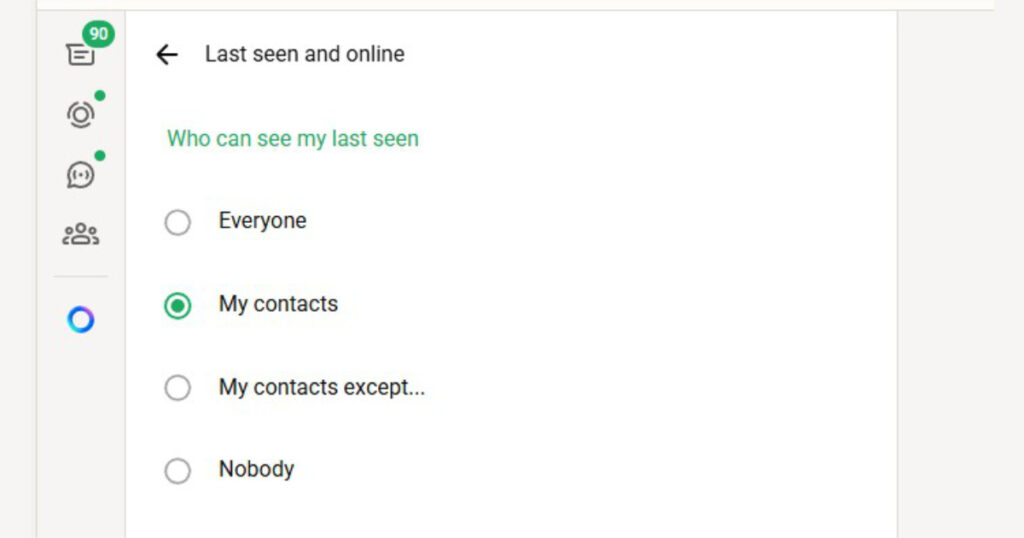
How to hide online status on WhatsApp on Android
Follow these steps on your Android phone. The steps work on any Android device, whether it is a Samsung, Realme, OnePlus, or any other brand.
| Step 1: Open WhatsApp |
| Find the WhatsApp icon on your home screen or in your app drawer. |
| Tap it to open the app. |
| Step 2: Go to Settings |
| Look at the three dots icon (⋮) in the top-right corner of your screen. |
| Tap it to open the menu. |
| Tap Settings from the list that appears. |
| Step 3: Open Privacy settings |
| Inside Settings, tap Privacy. |
| This is where WhatsApp keeps all your visibility controls. |
| Step 4: Change Last Seen and Online |
| Tap Last seen and online. |
| Under Last seen, choose Nobody. |
| Under Who can see when I’m online, choose Same as last seen. |
| This hides both your last seen and your online status from everyone. |
| Step 5: Done |
| You do not need to tap Save. WhatsApp applies the changes immediately. |
| You can close Settings and go back to your chats. |
| Note: If you choose Nobody for last seen, you will no longer be able to see other people’s last seen either. WhatsApp applies this rule equally to keep things fair. |
How to hide online status on WhatsApp on iPhone
The steps on iPhone are very similar to Android. Here is how to do it on iOS.
| Step 1: Open WhatsApp |
| Tap the WhatsApp icon on your iPhone home screen. |
| Step 2: Go to Settings |
| Tap Settings in the bottom-right corner of your screen (the icon looks like a gear). |
| Step 3: Open Privacy |
| Tap Privacy from the list of options. |
| Step 4: Change Last Seen and Online |
| Tap Last seen and online. |
| Under Last seen, select Nobody. |
| Under Who can see when I’m online, select Same as last seen. |
| Your online status is now hidden. |
| Step 5: Done |
| Changes save automatically. You are all set. |
How to hide online status on WhatsApp Web
If you use WhatsApp on your computer through WhatsApp Web or the desktop app, you can hide your online status from there too.
| Step 1: Open WhatsApp Web |
| Go to web.whatsapp.com in your browser, or open the WhatsApp desktop app. |
| Make sure you are logged in. |
| Step 2: Open Settings |
| Click the three dots icon (⋮) at the top of the left panel. |
| Click Settings from the drop-down menu. |
| Step 3: Go to Privacy |
| In Settings, click Privacy on the left sidebar. |
| Step 4: Update Last Seen and Online |
| Click Last seen and online. |
| Set Last seen to Nobody. |
| Set Who can see when I’m online to Same as last seen. |
| The setting takes effect right away. |
Quick reference: all platforms at a glance
| Platform | Path to setting | Choose |
| Android | Menu > Settings > Privacy > Last seen and online | Nobody / Same as last seen |
| iPhone (iOS) | Settings > Privacy > Last seen and online | Nobody / Same as last seen |
| WhatsApp Web / Desktop | Menu > Settings > Privacy > Last seen and online | Nobody / Same as last seen |
Frequently asked questions
Will people know I have hidden my online status?
No. WhatsApp does not send any notification when you change your privacy settings. Your contacts will simply stop seeing your last seen and online status, with no explanation.
Can I hide my online status from specific people only?
Yes. Instead of choosing Nobody, choose My Contacts Except and then select the specific people you want to hide your status from. This lets you stay visible to most contacts while hiding from a few.
Can I still see other people’s online status after hiding mine?
If you set your last seen to Nobody, WhatsApp will hide your status but you will also lose the ability to see other people’s last seen. However, you can still see if someone is currently Online in real time.
Does hiding online status affect message delivery?
Not at all. Messages will be sent, delivered, and read exactly as before. Only the Online or last seen label changes.
You are all set!
That’s all it takes to hide your online status on WhatsApp. A few taps in your privacy settings, and you are in full control of who sees your activity. Whether you are on Android, iPhone, or WhatsApp Web, the steps are simple and the change happens instantly.
Privacy on WhatsApp is yours to manage. Now that you know how to hide your online status on WhatsApp, feel free to explore the other privacy options in the same menu, such as controlling who can see your profile photo, about section, and status updates. WhatsApp gives you complete control over all of it.
If this guide helped you, share it with a family member or friend who could use a little more privacy on WhatsApp. And if you have any questions, drop them in the comments. We are always happy to help.







[…] messages on WhatsApp automatically delete your chats after a set period of time. No manual deleting, no reminders, no mess. Once you enable disappearing […]