
How to enable disappearing messages on WhatsApp (Easy guide for 2026)

Not every conversation needs to stick around forever. Whether you are sharing something personal, discussing something sensitive, or just prefer a clutter-free inbox, WhatsApp has a feature that quietly takes care of old messages for you.
How to enable disappearing messages on WhatsApp
Disappearing messages on WhatsApp automatically delete your chats after a set period of time. No manual deleting, no reminders, no mess. Once you enable disappearing messages on WhatsApp, the app does all the work.
This guide covers everything you need to know, including what the feature does, how to turn it on for individual chats and group chats, and what to keep in mind before you use it.
What are disappearing messages on WhatsApp?
Disappearing messages is a WhatsApp privacy feature that automatically deletes messages from a chat after a chosen time period. You can set messages to disappear after:
- 24 hours
- 7 days
- 90 days
Once the timer runs out, the messages are deleted from both sides of the conversation. This means the messages are removed from your phone and the other person’s phone at the same time.
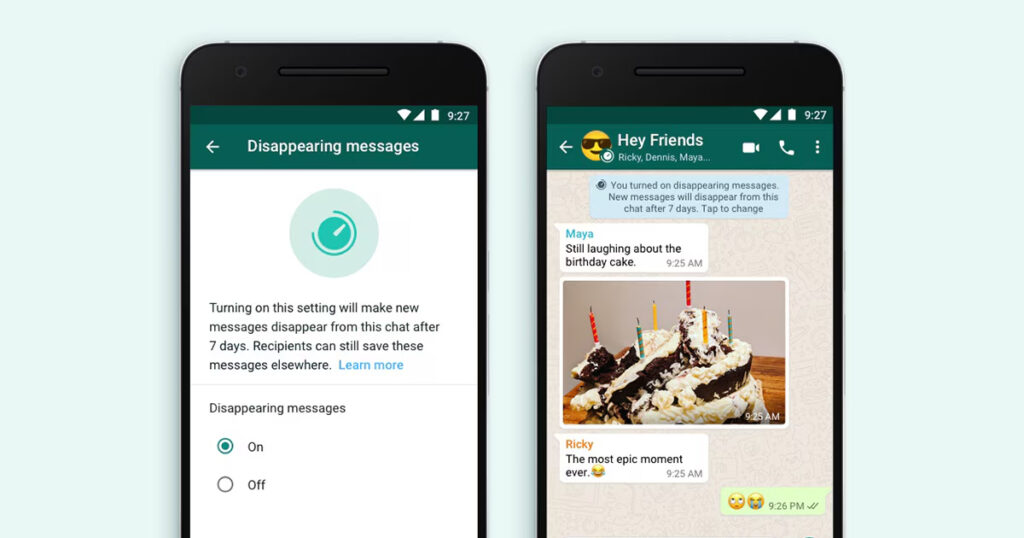
You can enable this feature for individual one-on-one chats, group chats, and even set it as your default for all new chats.
| Important: Disappearing messages do not delete media that has been saved to the phone’s gallery before the timer expires. If someone downloads a photo or video before it disappears, that copy stays on their device. |
How to enable disappearing messages on WhatsApp on Android
Follow these steps to turn on disappearing messages for a specific chat on Android.
| Step 1: Open the chat |
| Open WhatsApp on your Android phone. |
| Tap on the contact or group chat where you want to enable disappearing messages. |
| Step 2: Open chat info |
| Tap on the contact’s name or the group name at the very top of the chat screen. |
| This opens the Contact Info or Group Info page. |
| Step 3: Tap Disappearing messages |
| Scroll down slightly until you see Disappearing messages. |
| Tap it. |
| Step 4: Choose your timer |
| A menu will appear with three options: 24 hours, 7 days, and 90 days. |
| Tap the duration you prefer. |
| WhatsApp will confirm that disappearing messages have been turned on. |
| Note: From this point on, any new messages sent in this chat will automatically delete after the time you selected. Messages sent before you turned on this feature are not affected. |
How to enable disappearing messages on WhatsApp on iPhone
The steps on iPhone are nearly identical. Here is how to do it on iOS.
| Step 1: Open the chat |
| Open WhatsApp and tap the chat you want to update. |
| Step 2: Open contact or group info |
| Tap the contact’s name or the group name at the top of the screen. |
| Step 3: Tap Disappearing messages |
| Scroll down and tap Disappearing messages. |
| Step 4: Select your preferred duration |
| Choose 24 hours, 7 days, or 90 days. |
| The feature switches on immediately. A notice will appear in the chat confirming it is active. |
How to set disappearing messages as default for all new chats
If you want every new chat to have disappearing messages turned on automatically, WhatsApp lets you set a default timer. This applies to all new individual chats you start after changing the setting.
On Android
| Android: Set default disappearing messages |
| Open WhatsApp and tap the three dots (⋮) in the top-right corner. |
| Tap Settings. |
| Tap Privacy. |
| Tap Default message timer. |
| Choose 24 hours, 7 days, or 90 days. |
On iPhone
| iPhone: Set default disappearing messages |
| Open WhatsApp and tap Settings in the bottom-right corner. |
| Tap Privacy. |
| Tap Default message timer. |
| Choose your preferred duration. |
| Note: The default timer only applies to new chats you start after changing the setting. It does not automatically turn on disappearing messages in your existing chats. |
How to enable disappearing messages on WhatsApp Web
You can also turn on disappearing messages from WhatsApp Web or the desktop app.
| Step 1: Open a chat on WhatsApp Web |
| Go to web.whatsapp.com or open the WhatsApp desktop app. |
| Click on the chat where you want to enable disappearing messages. |
| Step 2: Open chat info |
| Click the contact name or group name at the top of the chat. |
| The info panel will open on the right side of the screen. |
| Step 3: Turn on disappearing messages |
| Scroll down in the info panel and click Disappearing messages. |
| Choose 24 hours, 7 days, or 90 days. |
| The feature is now active for that chat. |
How to turn off disappearing messages on WhatsApp
You can disable disappearing messages at any time by following the same steps and selecting Off instead of a time duration.
- For individual chats: Open the chat, tap the contact name, tap Disappearing messages, and select Off.
- For the default setting: Go to Settings > Privacy > Default message timer and select Off.
Turning off the feature stops the timer for future messages. Any messages already counting down will still delete when their timer runs out.
Disappearing messages timer: which one should you choose?
| Duration | Best for | What happens |
| 24 hours | Very sensitive conversations | Messages delete the next day |
| 7 days | Most users, everyday privacy | Messages delete after one week |
| 90 days | Long-running conversations you still want a record of for a while | Messages delete after three months |
Frequently asked questions
Can the other person turn off disappearing messages?
Yes. In a one-on-one chat, either person can turn disappearing messages on or off at any time. In a group chat, only the admin can change the setting.
Will disappearing messages delete photos and videos too?
Yes, media sent after you enable the feature will also disappear when the timer expires. However, if the other person saves an image to their phone’s gallery before the timer runs out, that saved copy will remain.
Can I read a disappeared message after it deletes?
No. Once a message disappears, it is permanently removed from both devices. WhatsApp does not store deleted messages on its servers.
Does disappearing messages work in group chats?
Yes. You can enable disappearing messages in a group chat the same way you do in a one-on-one chat. In groups, only admins have the ability to change the setting.
Will WhatsApp notify me when a message disappears?
No. WhatsApp does not send any notification when messages are automatically deleted. The messages simply stop appearing in the chat.
Your messages will now take care of themselves!
You have just learned how to enable disappearing messages on WhatsApp. It is one of the simplest privacy features WhatsApp offers, and it works quietly in the background without any effort from you once it is set up.
Whether you choose 24 hours for maximum privacy or 90 days for a light, gradual cleanup, disappearing messages on WhatsApp give you full control over how long your conversations stick around.
If this guide helped you, share it with someone who values their privacy on WhatsApp. And if you have a question about the feature, leave a comment below. We read every one and will get back to you.