
How to remove your phone number and delete your Truecaller account

Many people value their privacy when it comes to their personal phone numbers. In the modern world, it is common for contact details to be shared across various platforms without explicit consent. One of the most common ways this happens is through caller identification apps like Truecaller. While these services are designed to help you identify unknown callers and avoid spam, they function by collecting and storing vast amounts of data from users and their contact lists.
This means that even if you have never downloaded the app yourself, your name and phone number might still be present in their database because a friend or acquaintance who uses the app has your details saved in their phone. This lack of control over personal information is a major problem for many individuals. People often find that their names are listed incorrectly, or they feel uncomfortable knowing that anyone with the app can search for their number and find their identity. Another significant issue is the persistence of data. Simply deleting the app from your phone does not remove your information from the company servers.
Your profile remains active, and your number continues to be searchable by millions of other users. This creates a situation where you might feel trapped by a service you no longer wish to use. To truly regain control over your digital footprint, you must go through a specific process to deactivate your account and then manually request that your number be unlisted from the global directory. This guide provides the exact steps needed to accomplish both tasks, ensuring that your personal details are no longer accessible through the platform.
To assist you, we are going to walk you through how you can remove your phone number and delete your Truecaller account. We will address Android and iPhones separately, so depending on the kind of device you have, you can follow the steps.

How to deactivate your Truecaller account on Android
The deactivation process must be completed within the app itself before you can move on to removing your number from the public database. If you have an Android smartphone, follow these steps to close your account:
Step 1. Open the Truecaller app on your Android smartphone and make sure you sign in using your correct credentials.
Step 2. Once you have logged in, look at the top left corner of the screen. You will see a small icon that looks like a person or your profile picture. Tap on this icon.
Step 3. A menu will appear on the side or as a new screen. Scroll through the options until you find the word Settings. Tap on it to open the configuration menu.
Step 4. In the Settings menu, look for an option labeled Privacy Center. This section contains all the tools related to how the app handles your personal data.
Step 5. Inside the Privacy Center, scroll down to the bottom of the list. You will see an option that says Deactivate. Tap on this button.
Step 6. A message will appear on your screen asking for confirmation. It will warn you that deactivating your account means you will no longer be able to use the caller ID or spam protection features.
Step 7. Tap on the button that says Yes or Deactivate to confirm your choice. The app will then sign you out and your account will be deactivated.

How to deactivate your Truecaller account on iPhone
Step 1. Open the Truecaller app on your iPhone and make sure you sign in using the correct credentials.
Step 2. Look at the top right corner of the main screen. You should see your profile picture or a circular icon with your initials. Tap on this icon.
Step 3. On your profile page, find the gear icon or the word Settings and tap on it.
Step 4. Scroll down the list of settings until you find the Privacy Center option and select it.
Step 5. At the bottom of the Privacy Center screen, you will find the Deactivate Account button. Tap on it to proceed.
Step 6. The app will show a pop-up message asking if you are sure you want to delete your profile data and deactivate the account.
Step 7. Select Yes to confirm. Once this is done, the app will no longer be linked to your phone number, and you will be logged out.
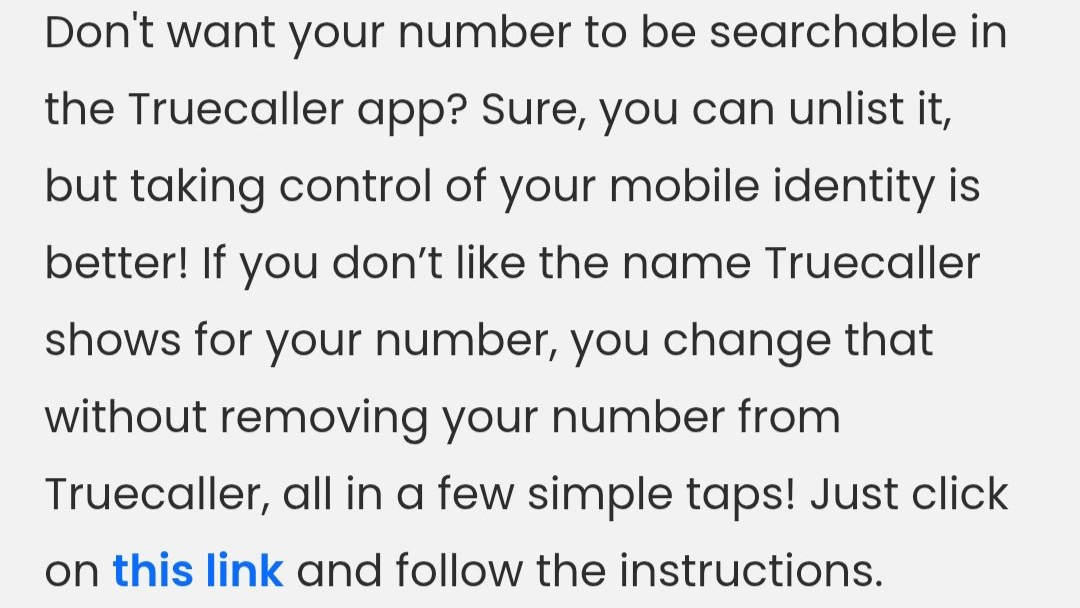
This will deactivate your account from Truecaller, but they may still have your number listed on their platform, and so, the next step in the process, is to unlist your number from the Truecaller database. This is how you can do it –
How to unlist your phone number from the Truecaller database
Step 1. Open a web browser on your computer or smartphone, such as Google Chrome or Safari.
Step 2. Go to the address bar and type in the official unlisting web address: www.truecaller.com/unlisting.
Step 3. On this page, you will see a box that asks for your phone number. It is very important that you enter your number with the correct country code. For example, if you are in the United States, you must start with +1 followed by your number. If you are in India, start with +91.
Step 4. Below the phone number box, there may be a list of reasons for why you want to unlist. You can choose any of the options, such as “I don’t want to be searchable” or “I have privacy concerns.”
Step 5. You will see a checkbox that says “I’m not a robot.” Tap or click on this box. You might be asked to solve a quick puzzle, like picking out pictures of traffic lights, to prove you are a human.
Step 6. Once the verification is complete, click or tap on the button that says Unlist or Unlist Phone Number.
Step 7. A final confirmation box might appear. Read the message and confirm that you want to proceed.
Step 8. The website will then process your request. It usually takes up to 24 hours for the changes to take effect across all their servers. During this time, your number might still appear in some searches, but it will eventually be removed.
Once you have done this, you need to ensure that you do not log back into the Truecaller app after unlisting your number. If you open the app and sign in again, the system will automatically recreate your profile and put your number back into the public directory. If you want to make sure your number is gone, wait at least 24 hours and then ask a friend who uses Truecaller to search for your number. If the process worked, your name should no longer appear in the search results.
Sometimes, even after unlisting, your name might still show up on a specific person’s phone. This is because that person might have saved your name manually in their own phone’s contact list. In this case, the app is simply reading what they have saved, and there is nothing you can do through the website to change what is stored on another person’s private device.
Finally, the only thing left to do, is to remove the Truecaller app from your smartphone. Simple delete and forget.
Stay tuned to the website for more easy tutorials that help you navigate digital privacy and technology. If you want us to make a tutorial on a specific topic or if you have questions about this guide, you can drop us an email.





[…] a critical work document. This often leads to a situation where users ignore the problem until the phone becomes slow or the app stops functioning correctly. Many individuals also do not realize that WhatsApp creates multiple copies […]