
How to clear WhatsApp storage without losing important photos and videos

Many people find that their smartphones slowly run out of space due to the constant stream of messages and media received on WhatsApp. Because this application is a primary tool for communication, it often becomes a digital attic where every photo, video, voice note, and document is stored automatically. A major problem users face is the “storage full” warning that appears at the most inconvenient times, preventing them from taking new photos or downloading important files.
Another significant issue is the overwhelming nature of the cleanup process. People fear that by clicking the wrong button, they might lose a precious family photo or a critical work document. This often leads to a situation where users ignore the problem until the phone becomes slow or the app stops functioning correctly. Many individuals also do not realize that WhatsApp creates multiple copies of media when they forward a video to several different groups, which doubles or triples the amount of space used for a single file.
Furthermore, the default settings on most phones are configured to save every single incoming image directly to the phone gallery, cluttering the device with thousands of unnecessary memes and promotional graphics. To solve these problems, you need a method that allows you to identify the largest files and the most cluttered chats so you can remove the digital junk while keeping your cherished memories safe. In this tutorial, we will take a look at how to clear WhatsApp storage without losing important photos and videos.
Using the built-in storage management tool to clear Whatsapp storage
WhatsApp includes a specific tool designed to help you see exactly what is taking up space. This is the safest way to start your cleanup because it categorizes files by size and frequency.
Step 1. Open the WhatsApp application on your smartphone (Android or iOS).
Step 2. If you are using an Android phone, tap the three vertical dots in the top right corner and select Settings. If you are using an iPhone, tap the Settings gear icon located at the bottom right of the screen.
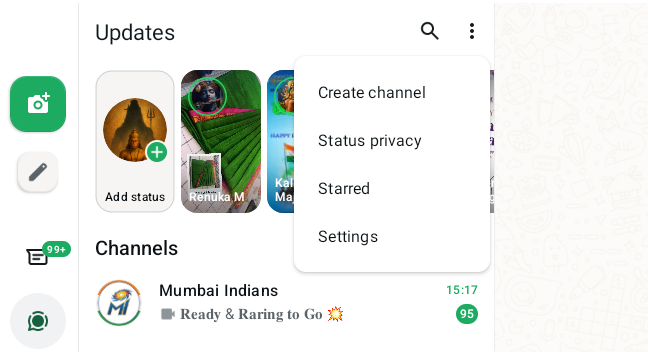
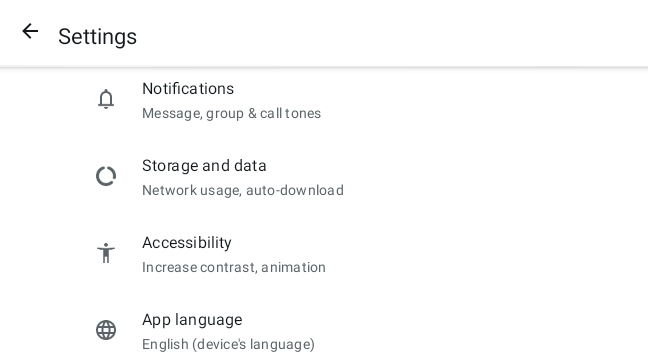
Step 3. Look for the option labeled Storage and Data and tap on it.
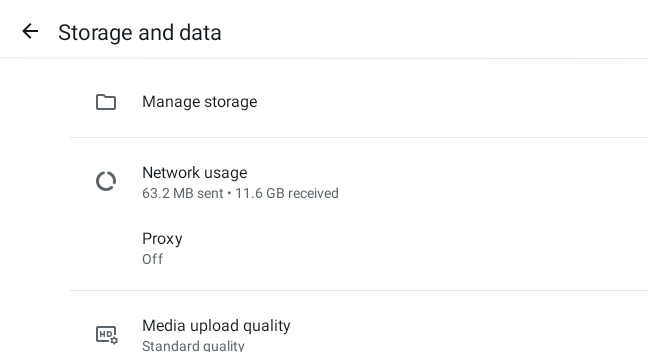
Step 4. At the very top of the next screen, you will see an option called Manage Storage. Tap this to open the detailed breakdown of your data.
Step 5. You will now see a bar at the top of the screen showing how much space WhatsApp is using compared to other apps on your phone.
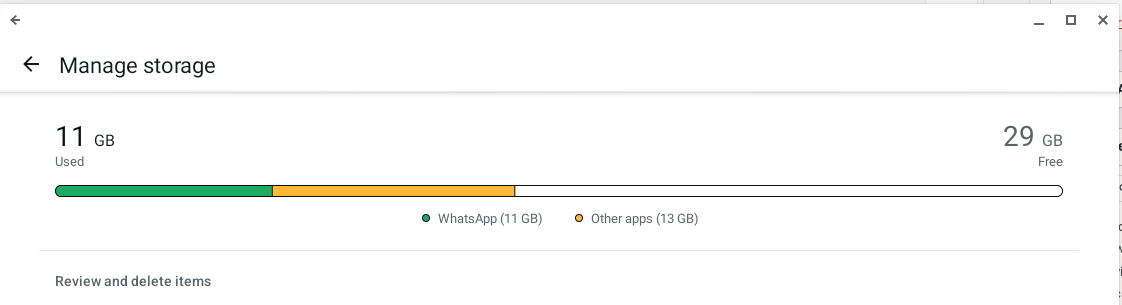
Step 6. Look for a section titled Review and Delete Items. Under this section, you will see a category labeled Larger than 5 MB. Tap on this category to see the biggest videos and files that are eating up your memory.
Step 7. On this screen, you can see every large file. To keep important media safe, tap on a video or photo to preview it before you decide to delete it.
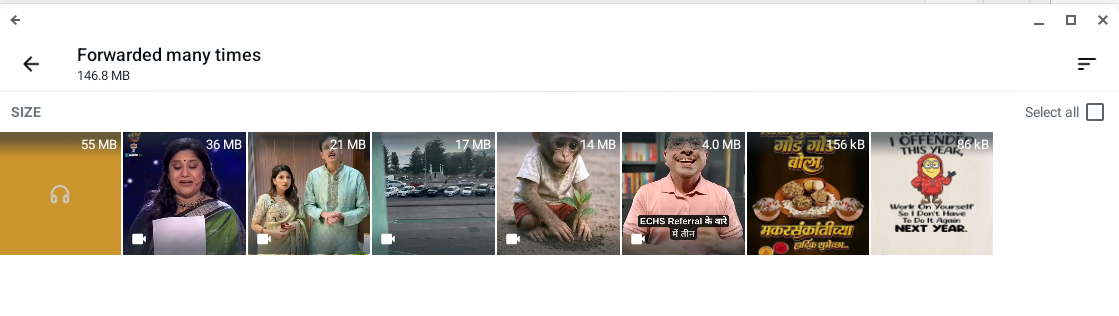
Step 8. If you see a file you want to delete, press and hold your finger on it to select it. You can select multiple files this way.
Step 9. If you want to delete everything in this list because they are all unnecessary, you can tap the Select All checkbox at the top right.
Step 10. Once you have selected the files you no longer need, tap the Trash Can icon.
Step 11. A box will appear asking if you want to delete the items. It may also give you an option to “Delete any copies” if the file was sent to multiple people. Check this box to ensure every version of that file is gone.
Step 12. Tap Delete to confirm. This removes the files from your phone permanently.
Stay tuned to the website for more easy tutorials that help you manage your digital life and keep your devices running smoothly. If you want us to make a tutorial on a specific technology issue or if you have questions about managing your apps, you can drop us an email.






[…] you have been using ChatGPT or any other AI assistant on WhatsApp, today is the last day you can do that. Meta has officially pulled the plug on third party AI […]
[…] development matters because it means iPhone users and Android users will finally be able to send each other encrypted messages without needing to download a third […]
[…] 5 Max with a 9,000mAh battery, which is significantly larger than what we usually see in standard smartphones. This massive capacity is paired with 100W fast charging, meaning that even though the battery is […]
[…] some local features remained functional, cloud-based services for sending emails and conducting video meetings were completely unresponsive, leading to significant delays for businesses operating in […]
[…] followed, you can disable or hide this feature. In this guide, you will learn how to turn off WhatsApp Channels, unfollow channels, and stop notifications […]
[…] WhatsApp Business is a great app for this exact reason. It was built to help business owners connect with their audience easily. One of its best features is the ability to send messages automatically. This means that when someone texts you, the app sends a reply for you. You do not have to lift a finger. […]