
How to easily generate QR codes and use them in 2026

QR codes are those small square patterns you see everywhere these days, especially at shops and restaurants. They make life easier by letting you do things quickly without typing. You can use them to share your shop location, your website link, your payment details, or even your home Wi-Fi password. All someone needs to do is point their phone camera at the code and tap. In this guide, you will learn how to create your own QR codes for different purposes and how to use them safely.
Alright, with that said, let’s take a look at how to create and use QR codes step by step.
What exactly is a QR Code?
QR code stands for Quick Response code. It is like a barcode but much smarter. While old barcodes can only hold a little bit of information, QR codes can store website links, phone numbers, location details, and much more. The three large squares you see in the corners help your phone understand which way to read the code, so it works even if you scan it from an angle.
How to protect yourself when interacting with QR codes
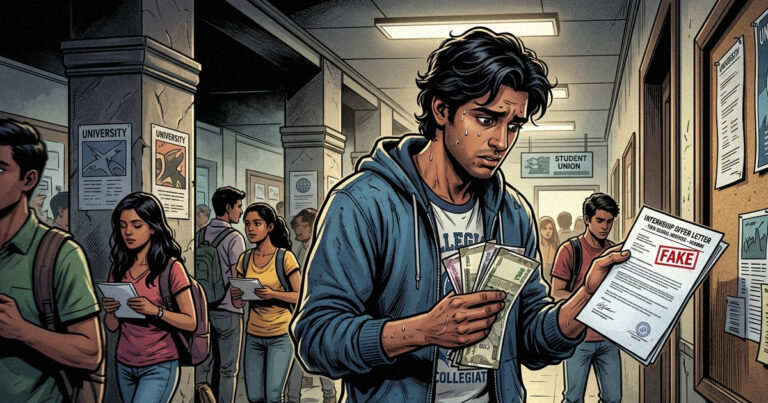
QR codes are very helpful, but you need to be careful because scammers sometimes use fake codes to steal money or personal information.
Number 1. If you see a QR code at a shop or on a poster, look closely. Sometimes scammers stick their own code over the real one. If it looks like a sticker was placed on top of another sticker, do not scan it.
Number 2. When you scan a code, your phone usually shows you the website link before opening it. Read this carefully. If it looks strange or has random letters and numbers, do not click on it.
Number 3. When paying through a QR code, always check the name of the person or shop receiving the money. Make sure it matches before you enter your UPI PIN.
Number 4. Do not scan random QR codes you find on the street or receive from unknown people on messaging apps.

How to create a QR Code for your location (Google Maps)
This is very useful if you want to share your shop address, home location, or event venue. People can just scan the code and get directions instantly. This is how you can easily achieve it –
Step 1. Open the Google Maps app on your phone or go to Google Maps on your computer.
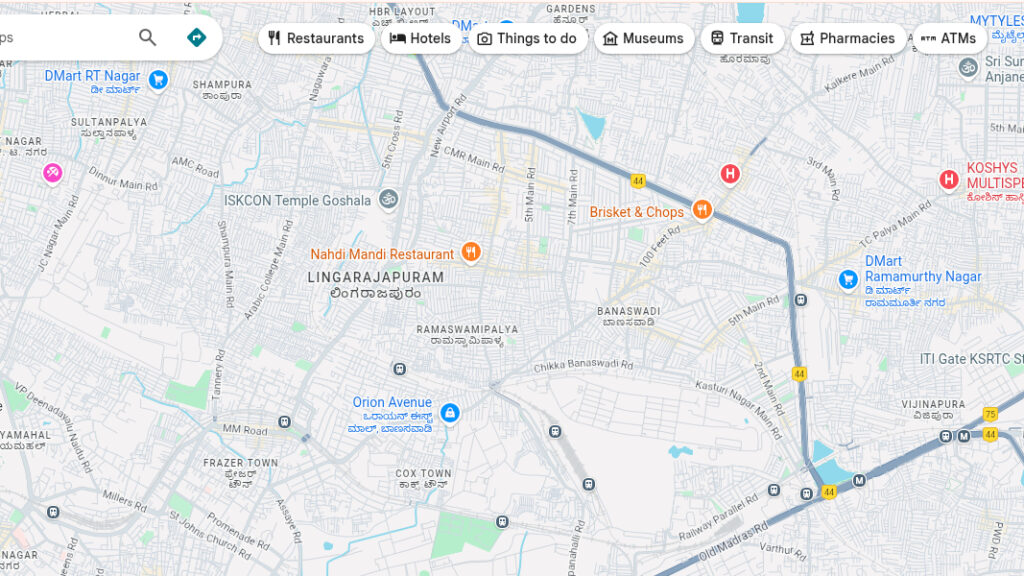
Step 2. Search for the place you want to share or drop a pin on the exact spot.

Step 3. Click or tap on the Share button. You will see different sharing options.
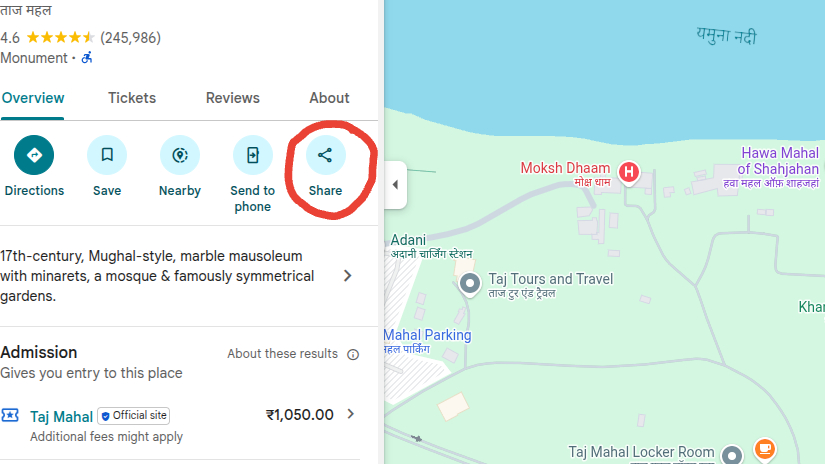
Step 4. Select the option that says Copy Link. This will copy the Google Maps link to your clipboard.

Step 5. Open your web browser and search for “free QR code generator.” Popular options include QRCode Monkey or Canva. These websites are free to use. We recommend using Canva, but it is totally up to you.
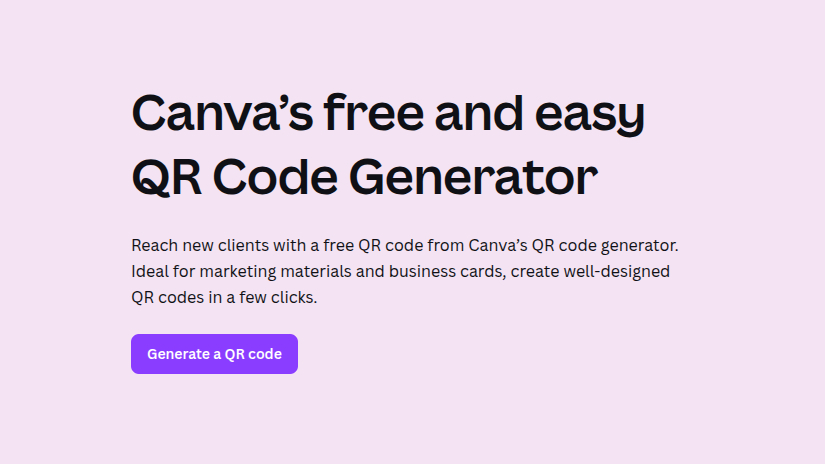
Step 6. On the generator website, look for a section that says URL or Location and click on it.
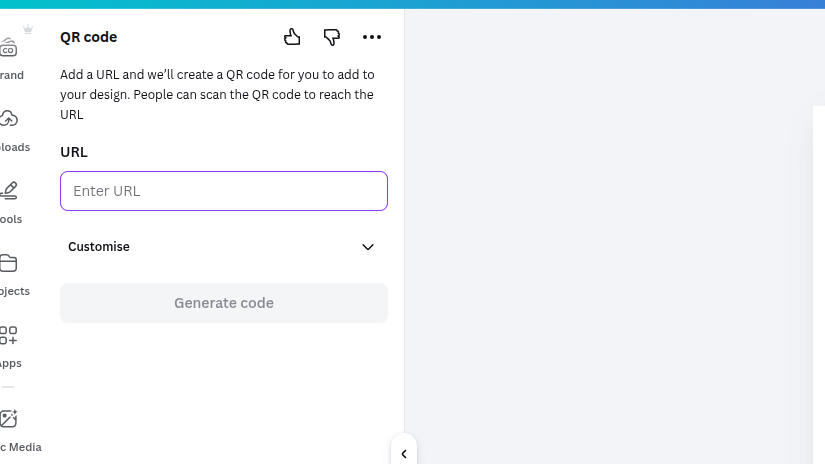
Step 7. Paste the Google Maps link you copied earlier into the box.
Step 8. Click the button that says Generate or Create QR Code.

Step 9. Download the QR code image to your phone or computer. You can now print it on business cards, wedding invitations, or event flyers.
How to Create a QR Code for Your Website
If you want to create a QR Code that redirects the user to your custom website, then this is how you can get it done.
Step 1. Copy the full web address (URL) of your website. Make sure it starts with https://.
Step 2. Go to any free QR code generator website.
Step 3. Find the URL section and paste your website address there.
Step 4. Click Generate and then download the code. You can share this on social media or print it on your business materials.
How to create QR codes for UPI payments
If you have a shop or receive payments through Google Pay, PhonePe, or Paytm, you can create a payment QR code.
Step 1. Open your UPI payment app like Google Pay, PhonePe, or Paytm.
Step 2. Tap on your profile picture or the menu icon.
Step 3. Look for an option that says My QR Code or Show QR Code.
Step 4. You can take a screenshot of your QR code or look for a Download option if available.
Step 5. Print this QR code and display it at your shop counter. Customers can scan it to pay you directly.
How to create QR codes for sharing your Wi-Fi
Instead of telling guests your long Wi-Fi password, you can create a QR code they can scan to connect automatically.
Step 1. Open a free QR code generator website.
Step 2. Look for an option that says Wi-Fi and click on it.
Step 3. Type in your Wi-Fi network name (SSID) and your password exactly as they are.
Step 4. Click Generate to create your Wi-Fi QR code.
Step 5. Download the code and print it. You can stick it on your wall or keep it on your table. When guests visit, they can scan it and connect to your Wi-Fi without asking for the password.
Congratulations! You now know how to create QR codes for sharing locations, websites, payment details, and Wi-Fi passwords. You also learned how to stay safe and fix common scanning problems. QR codes are a simple way to make everyday tasks faster and easier. The more you practice creating and using them, the more useful you will find them.
Want to learn more helpful tech tips and tricks? Follow our website for more easy-to-follow tutorials that will help you make the most of your smartphone and apps!





[…] human subjects in motion is crucial for solo creators. DJI has upgraded its software suite to include ActiveTrack 7.0. This intelligent algorithm is capable of locking onto a subject […]