Nothing OS 5 update: Every new feature explained

If you own a Nothing phone, you already know the brand does not update its software very often. So when news of the Nothing OS 5 update breaks, it is worth paying attention. The first beta has just rolled out, and unlike the smaller Nothing OS 4.0 update, this one touches almost every part of the phone. New look, new widgets, a genuinely useful sharing feature, and a few small fixes that Nothing fans have been asking for.
Let’s go through the Nothing OS 5 features one by one, so you know exactly what is changing before the stable version reaches your phone.
What changes the moment you turn on your Nothing phone
The Nothing OS 5 update makes its presence felt right from the boot screen. It is more colourful than before, and the on screen elements are smaller and neater. It sounds like a small thing, but it is the kind of change that sets the tone for everything else in this update.
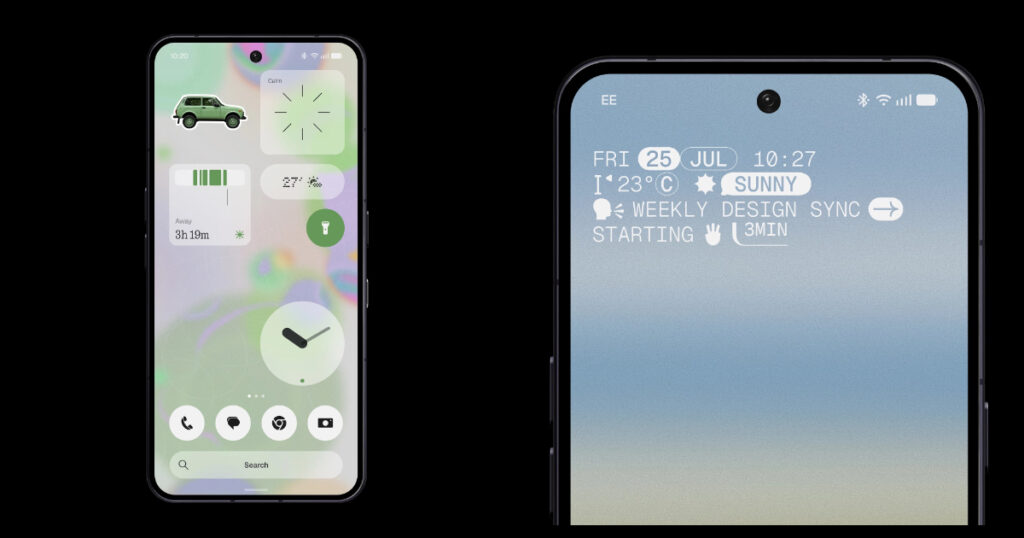
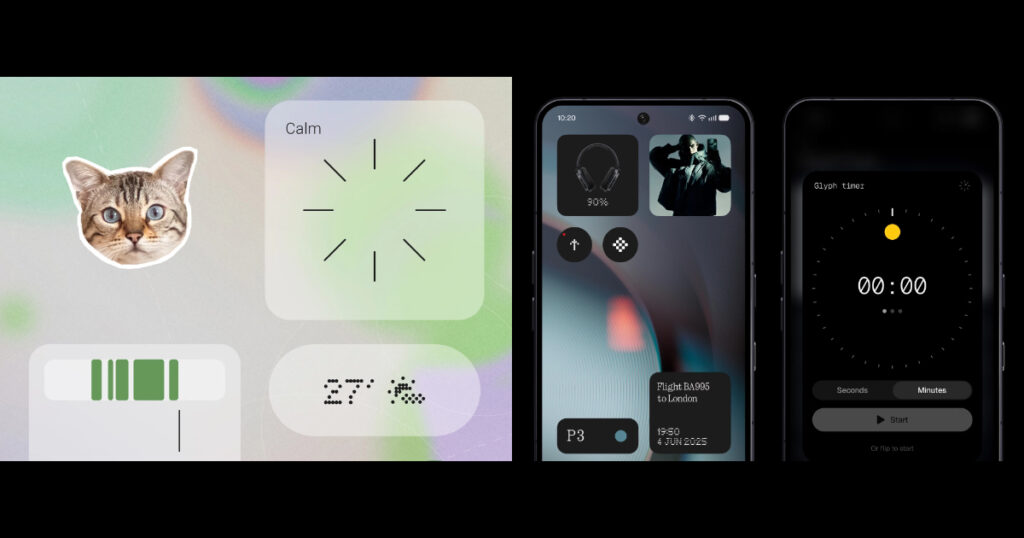
The lock screen gets even more attention. There is a new clock design called the Gooey clock face, which has a soft, rounded look compared to the simpler fonts Nothing has used before. There is also a new “micro graphics” clock face on the way, which will show the date, time, weather and your meetings right on the lock screen without you needing to unlock the phone. Think of it like a quick glance at a noticeboard before you walk out the door, except the noticeboard is your phone screen. This feature is not part of the beta yet and will arrive with the stable release later on.
One neat touch is that the clock on your lock screen can now pick colours straight from your wallpaper, so the whole screen feels like it belongs together instead of looking like two different apps stitched side by side.
The Lucent theme is the real headline feature
If there is one thing that will make people notice you are running the Nothing OS 5 update, it is the new Lucent theme. This gives widgets, the search bar, and lock screen elements a frosted glass look, a bit like looking through a shower door. Light passes through, but everything behind it is softly blurred.
It shows up almost everywhere, in your home screen widgets, the Google or Nothing search bar, and even the lock screen. If you find too much blur distracting, Nothing has also added a setting to tone it down, so you are not stuck with the effect if it is not your style.
Three new widgets worth knowing about
Every software update brings new widgets, but a few of these are actually practical rather than just decorative.
- Away Time widget: shows how much time you have spent away from your phone. It is a small but honest way to keep track of your screen time habits without opening a separate app.
- Collector widget: lets you pin your favourite photos to your home screen like a small sticky note board. You can add several photos and swipe through them, and the widget also cycles through the images on its own.
- Glyph Timer widget: starts the Glyph light timer directly from your home screen, so you do not need to dig through settings when you want to set a quick timer.
All three widgets also work on the lock screen, and you can resize them depending on how much space you want to give them.
A small change that saves real time: batch editing apps
This next one might not sound exciting, but it solves a genuine daily annoyance. Until now, setting up a new Nothing phone meant moving app icons around one at a time, which takes forever if you like a tidy home screen. With the Nothing OS 5 update, you can finally select multiple apps and widgets together and move them all at once.
Other Android skins like Color OS and One UI have had this for years, so it is good to see Nothing catch up here. If you have ever spent twenty minutes rearranging icons after buying a new phone, you will understand why this small fix matters.
Notifications and quick settings finally split apart
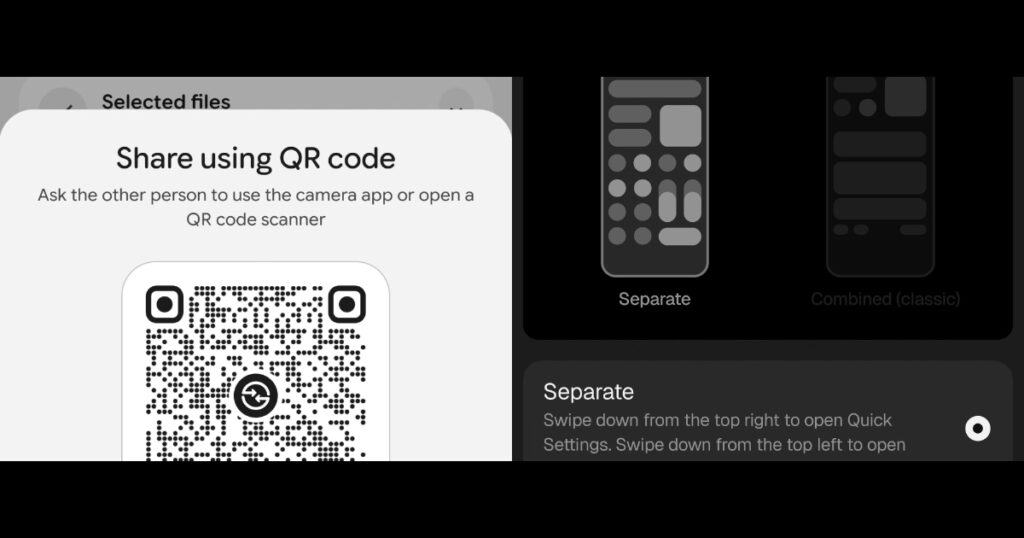
For a long time, Nothing OS combined notifications and quick settings into a single panel, which meant swiping down twice just to reach your Wi-Fi or Bluetooth toggle. This is one of the most requested changes, and it is finally here.
Swipe left from the top of the screen to open notifications, and swipe right to open quick settings. Each panel opens with a smooth curtain like animation, and Nothing has also redesigned the layout inside. Extra options that used to sit at the bottom of the quick settings panel have now moved to the top, there is a new volume slider, and small details like the Wi-Fi and mobile data icons animate more smoothly when you toggle them.
Even the airplane mode icon has a small plane animation when you switch it on or off. These are small touches, but they add up to a version of Android that feels more thought through.
Apple AirDrop support finally arrives, with one catch
This is probably the single most requested feature for any Nothing phone owner who has iPhone using friends or family. With the Nothing phone update, Quick Share now works with Apple devices, so you can send files straight to an iPhone.
There is a catch though. Right now this only works through a QR code method, not the simple tap and share you get between two Samsung phones. It is also iPhone only for now, with no support for Mac computers yet. So while it is not the seamless AirDrop like experience some were hoping for, it is still a big step forward. Imagine being at a family dinner and needing to send a photo to a cousin who uses an iPhone. Instead of emailing it or using a third party app, you can now scan a code and send it directly. That alone will save a lot of small daily frustrations.
Stock apps get quiet but useful upgrades
Nothing’s own apps have also been refreshed as part of this update.
The gallery app gets a new menu bar with the same frosted Lucent effect, along with the ability to sort and filter your photos and reorder your albums. When editing a photo, there are two new options for adding text and annotations directly on the image.
The camera app has a cleaner layout too. The lens switching option has moved to the top left corner, the on screen controls are smaller and less cluttered, and when you scan a QR code, the result now appears at the bottom of the screen instead of floating around with the viewfinder.
Two new apps are also joining the system. Glyph now has its own dedicated app for managing sounds, ringtones and light schedules, and Essential Space, where users can build or download custom widgets, is now a proper built in app instead of a side feature.
AI features get quieter improvements, not new additions
If you were expecting a wave of new AI tools with the Nothing OS 5 beta, this update takes a different approach. Instead of adding new AI features, Nothing has focused on improving what already exists. Essential Voice is said to respond better, though the difference is subtle in this early beta.
Nothing also claims smoother animations that respond mid gesture, along with background improvements like reduced resource use for apps running in the background, smarter app preloading, and an overnight memory optimisation process. These are the kind of changes you will only really notice after living with the phone for a few weeks, not something you will spot on day one.
When will the stable Nothing OS 5 update arrive
Nothing has confirmed that the stable version of this update will begin rolling out by October. As always with staged rollouts, not every device will get it on the same day, so check your phone’s software update settings closer to that date.