How to set up Auto Reply on WhatsApp Business: A Complete Step-by-Step Guide [2026]

Running a small business is a busy job. You often have to wear many hats at the same time. You are the manager, the salesperson, and the customer support agent all at once. Because you are so busy, it is hard to stay on your phone all day. Customers expect fast replies, but you might be in a meeting or taking a well-deserved break.
If you do not reply quickly, a customer might feel ignored. This is where you will find the need to set up Auto Reply on WhatsApp Business . Using the right tools can help you maintain a professional image without needing to be glued to your screen every single second.
WhatsApp Business is a great app for this exact reason. It was built to help business owners connect with their audience easily. One of its best features is the ability to send messages automatically. This means that when someone texts you, the app sends a reply for you. You do not have to lift a finger.
It helps you manage expectations and lets your customers know that you have received their message. Whether you are closed for the weekend or just busy with another client, an auto reply keeps the conversation going. It is like having a digital assistant that never sleeps.
Transitioning from manual replies to an automated system is very simple. You do not need to be a tech expert to make this work. The app is designed to be user-friendly so that anyone can navigate the settings. Once you understand where the buttons are, you can customize your messages to fit your brand voice.
You can be formal or friendly, depending on what your business does. The goal is to make sure your customers feel heard and valued. Let us look at the specific path you need to take inside the app to get this feature working for you right now.
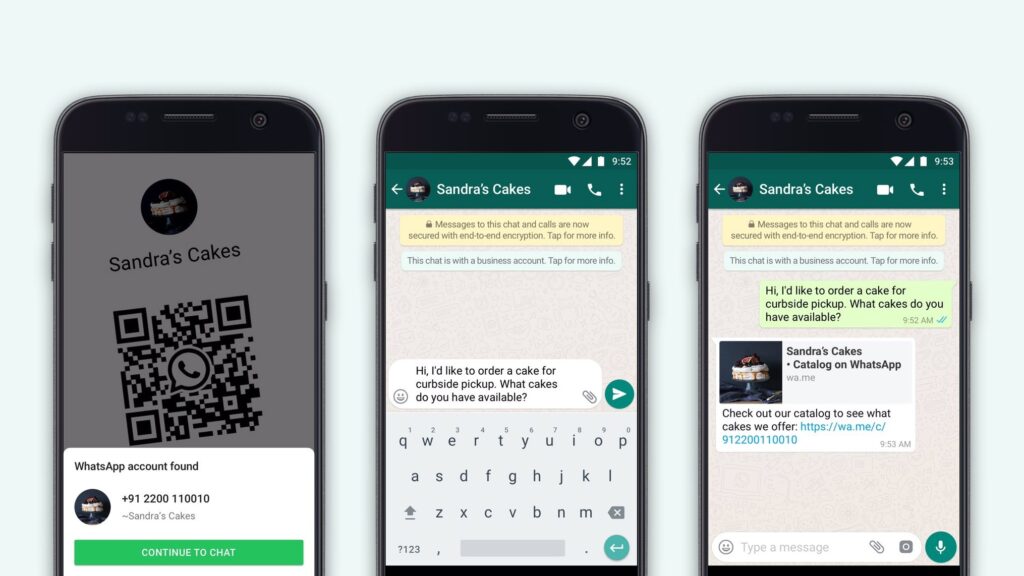
How to Set Up Auto Reply on WhatsApp Business
Step 1. To begin this journey, you need to have the WhatsApp Business app installed and updated on your smartphone. The process starts the moment you tap that green icon on your home screen. When the app opens, you will see your list of chats. Depending on the phone you use, the next step looks a little bit different.
If you are using an iPhone, you should look at the bottom of your screen. There is a small icon labeled Tools. This is your gateway to all the special features of the business version of the app. Tap on it to enter the business settings area.
Step 2. If you are an Android user, your path starts at the top of the screen instead. Look at the top right corner of your chat list. You will see three small dots stacked on top of each other. This is the menu button. Tap those three dots, and a small list will pop up.
From that list, you need to select the option that says Business Tools. This section is where the magic happens for every business owner. It contains everything from your business profile to your product catalog, but today we are looking for something very specific to help with your messaging.
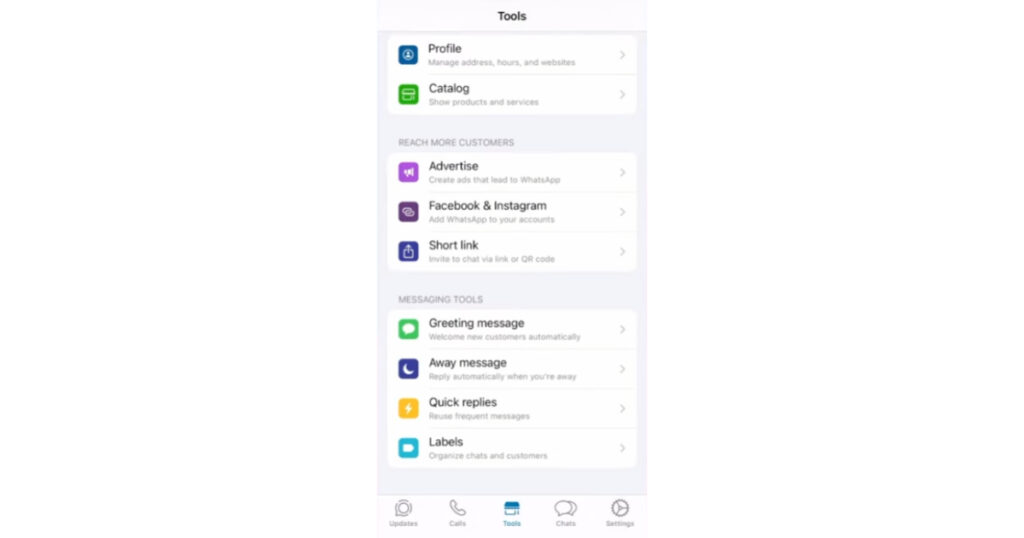
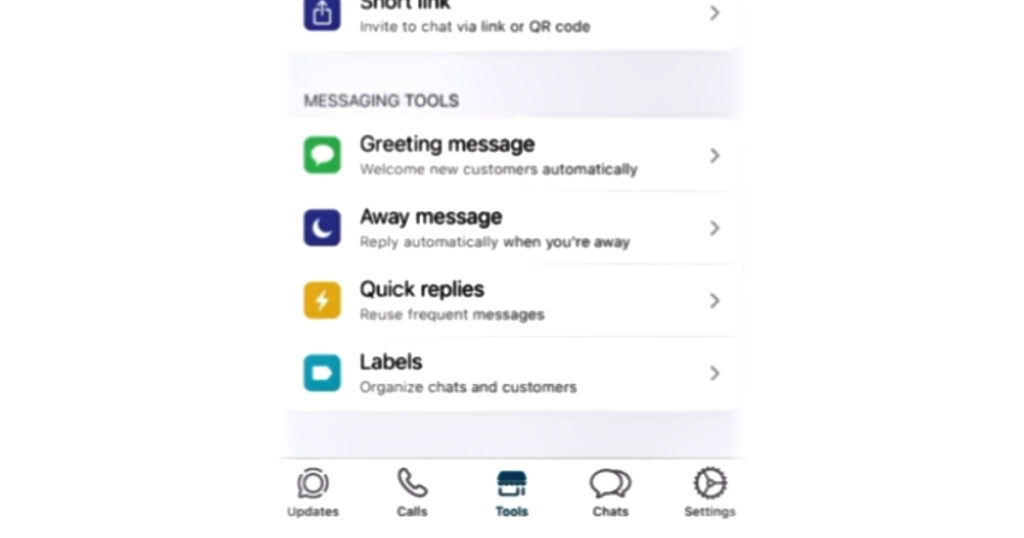
Step 3. Once you are inside the Business Tools section, you will see a list of different categories. You need to scroll down until you find a section called Messaging Tools. Under this heading, you will find a few different options like Greeting Message and Quick Replies.
The one you want for this guide is called Away Message. This is the specific feature that handles your auto replies. Tap on Away Message to open its settings page. This page is the control center for your automated responses, and it is very easy to configure once you are there.
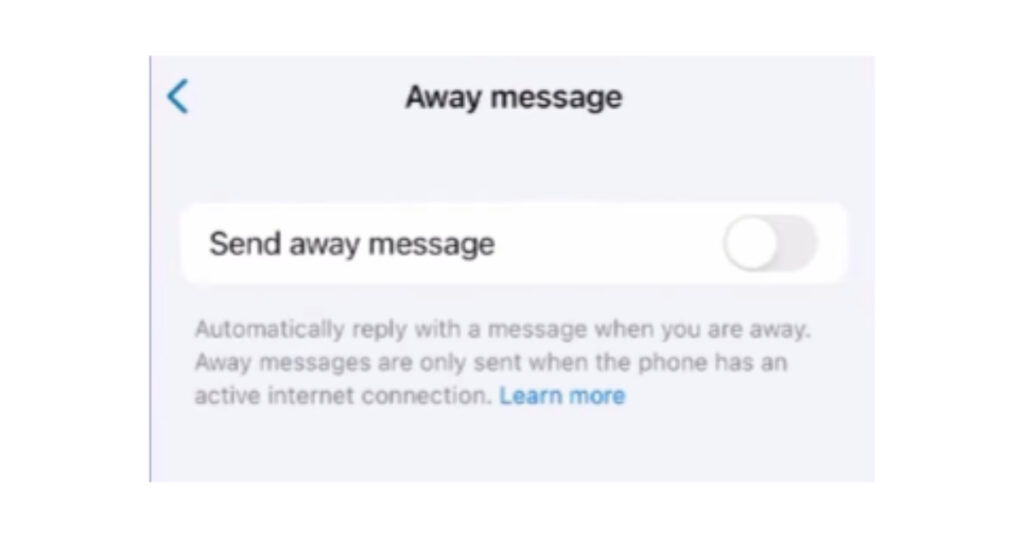
Step 4. The first thing you will see is a toggle switch next to the words Send Away Message. By default, this switch is usually turned off. To start using the feature, you must tap that switch to turn it on. It will turn green to show that it is active. Now that the system is live, you have to tell it when it should work. This brings us to the Schedule setting. When you tap on Schedule, you have a few choices.
You can set it to send only during specific hours or outside of your business hours. However, many people choose the option to Always Send. This ensures that every person who reach out gets an immediate response, no matter what time it is.
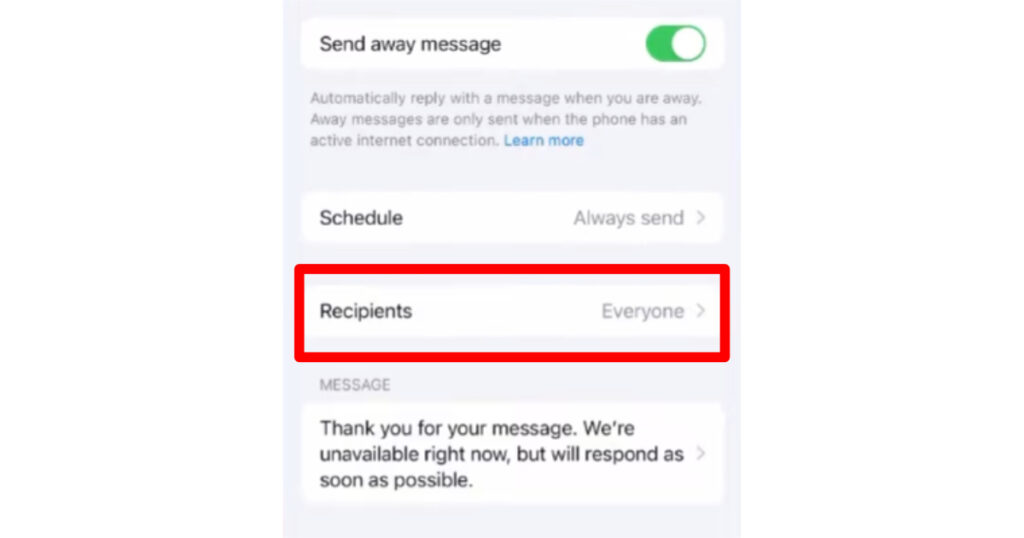
Step 5. After you decide on the timing, you need to decide who gets the message. Tap on the Recipients option to see your choices. You might want to send an auto reply to everyone who messages you. Or, you might want to send it only to people who are not in your address book.
This is helpful if you want to give a warm welcome to new customers while ignoring your personal contacts. You can even exclude certain people if you want to. Most businesses find that sending it to everyone is the safest way to make sure no one is left waiting for an answer.
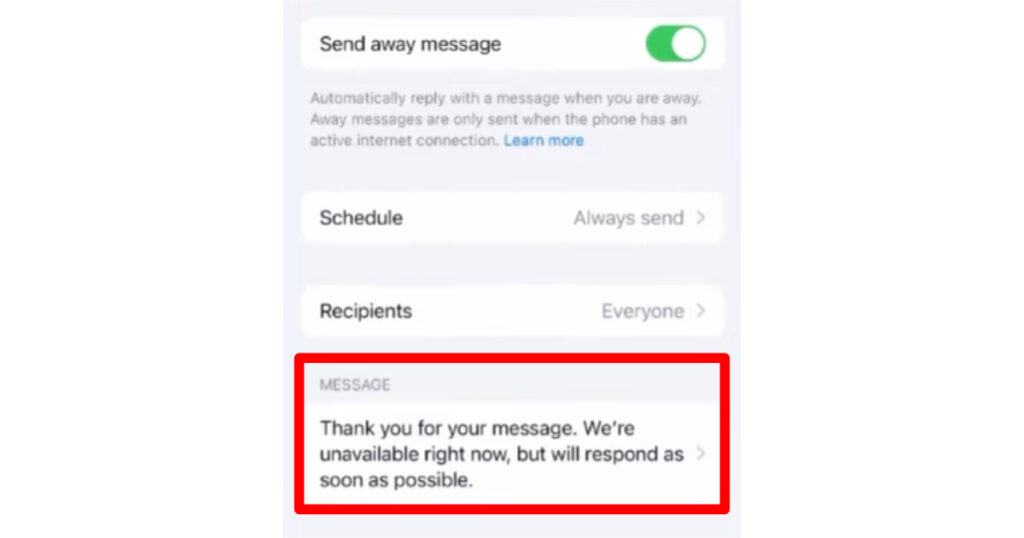
Step 6. Now comes the most important part: the message itself. There is a section labeled Message where you can see a default text. Usually, it says something simple like thank you for your message and we will get back to you soon. While this is okay, it is much better to make it your own.
Tap on the message to edit it. You can delete the default text and type in something that sounds like you. You might want to include your website link, your opening hours, or even a special discount code. Customizing this text makes your business feel more human and professional.
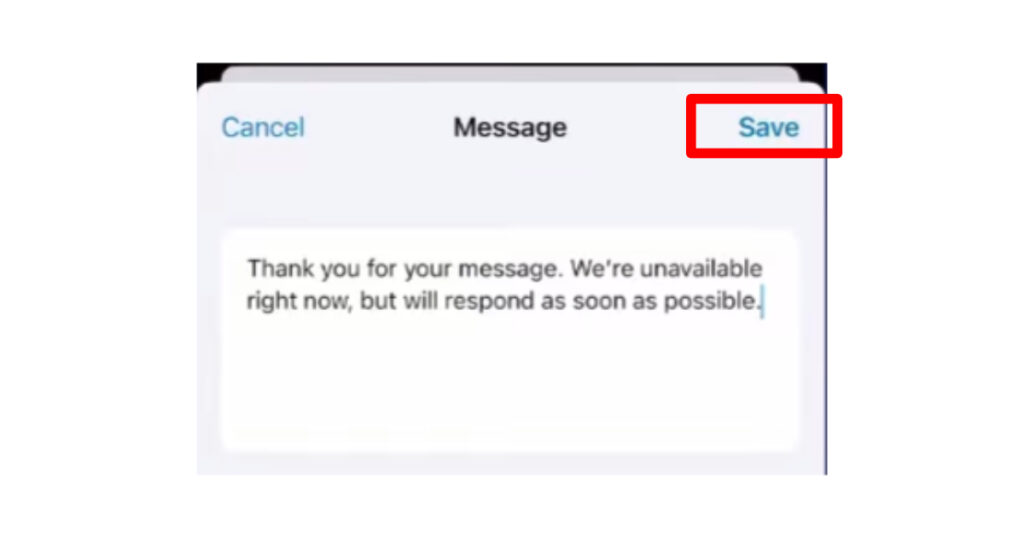
Step 7. When you are happy with the text you have written, look at the top right corner of the screen. You will see a button that says Save. It is very important that you click this button. If you just go back without saving, the app will not remember your changes.
Once you hit Save, your auto reply is officially ready to go. From this moment on, whenever someone sends you a message that fits your settings, WhatsApp will instantly reply with the words you wrote. You can put your phone down and focus on your work, knowing that your customers are being taken care of.
Setting up this feature is a small step that makes a huge difference in how people see your business. It shows that you are organized and that you care about communication. It takes away the stress of having to reply to every ping immediately. You can take your time to give a thoughtful answer later because the auto reply has already done the initial work for you. It is a simple way to use technology to make your life easier and your business more successful.
Thank you for following along with this guide. If you want to learn more tips and tricks to help your business thrive in the digital world, make sure to follow TattwaTech for more tutorials. We are dedicated to providing you with the best information to help you succeed. Keep practicing with these tools, and you will see how much smoother your daily operations become.