
How to disable Gemini from your Google Apps [Easy 2026 Tech guide]

How to disable Gemini on your Google Apps
Gemini is Google’s very own AI model and currently one of the most capable ones out there. Google has added Gemini across Android, Gmail, Google Workspace, and other services, and for obvious reasons, many users are not comfortable with how much access it has. This is why, we are going to help you disable Gemini from your Google Apps, so that you have complete control over your data and usage patterns.
Now, disabling Gemini is an optional feature and something that can be re-enabled, should you feel the need for the AI assistance or maybe due to the introduction of a feature that has you excited. So, let’s get right into the tutorial –
Step 1. Turn off Gemini app activity
This is the most important step if you want to reduce data tracking.
- Open the Gemini app
- Tap your profile icon
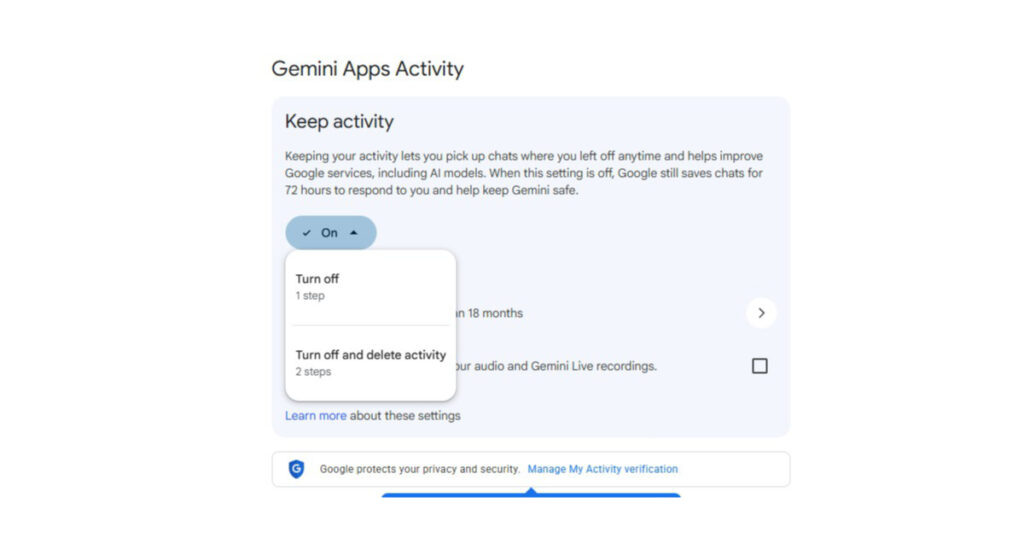
- Go to “Gemini Apps Activity”
- Turn it off
You can also choose “Turn off and delete activity” to remove past data.
When this is off, Gemini stops saving long-term activity. Some data may still be stored briefly for system processing.
Step 2. Remove Gemini access to other apps
Gemini works by connecting to other apps. You need to cut those connections as well. Here’s how to get it done.
- Open Gemini app
- Go to profile → Apps
- Turn off access to:
- Google Workspace apps
- Messages
- Phone
This stops Gemini from interacting with your personal apps.
disable Gemini AI
Step 3. Disable Gemini on Gmail
Gemini is deeply integrated into Gmail through smart features.
- Open Gmail
- Go to Settings
- Select your email account
- Turn off “Smart features”
- Turn off “Smart features in Google Workspace”
This removes AI suggestions and Gemini-based assistance in Gmail.
Step 4: Stop Gemini from replacing Google Assistant
On Android, Gemini is slowly replacing Google Assistant.
To avoid this:
- Open Google app
- Go to Settings
- Find Assistant settings
- Switch back to Google Assistant if available
Google is still transitioning users, so both systems may exist for now.
Step 5: Remove Gemini from Chrome and search
Gemini can also appear in search and browser settings.
- Open Chrome settings
- Go to Search Engine settings
- Remove or deactivate Gemini-related options
This helps reduce AI summaries and suggestions in search.
Step 6: Control auto-delete and data retention
Even if you use Gemini, you can limit how long your data is stored.
- Go to Gemini Apps Activity
- Set auto-delete to 3 months
- Or turn it off completely
By default, some data may be stored for longer periods unless you change it.
What happens after you de-Gemini your apps?
Once you complete these steps:
- Gemini stops accessing your apps
- AI suggestions reduce or disappear
- Data collection is limited
- Some features may stop working
You may lose convenience features like smart replies or automatic summaries. That trade-off is part of the decision.
Why users are choosing to disable Gemini
There are three main reasons:
1. Privacy concerns
Gemini connects deeply with personal apps and data.
2. Control over data
Users want to decide what gets stored and used.
3. Reduced AI interference
Some people prefer a simpler, manual experience without AI suggestions.






[…] finding every single episode in one place can be a bit of a challenge depending on where you live. This guide is designed to cut through the noise and give you the direct facts on how to watch Heartbeat online so you can […]
[…] the idea that Google won’t rest until gemini is everywhere in your home makes you uncomfortable, there are alternative paths available. Many privacy-focused consumers are […]